

)
A logo with a white box around it looks unprofessional the moment you place it on a website, a slide, or a product photo. The fix is simple: remove the logo background and save it as a transparent PNG. In this guide, you will learn how to remove logo background online free using HDRemover, how to keep the edges sharp, and which file format to export so your logo looks right everywhere.
Whether you are a designer, a small business owner, an online seller, or a marketer, a clean transparent logo is one of the most useful files you can own. The best part is that it takes only a few seconds, and you do not need Photoshop or any design experience.
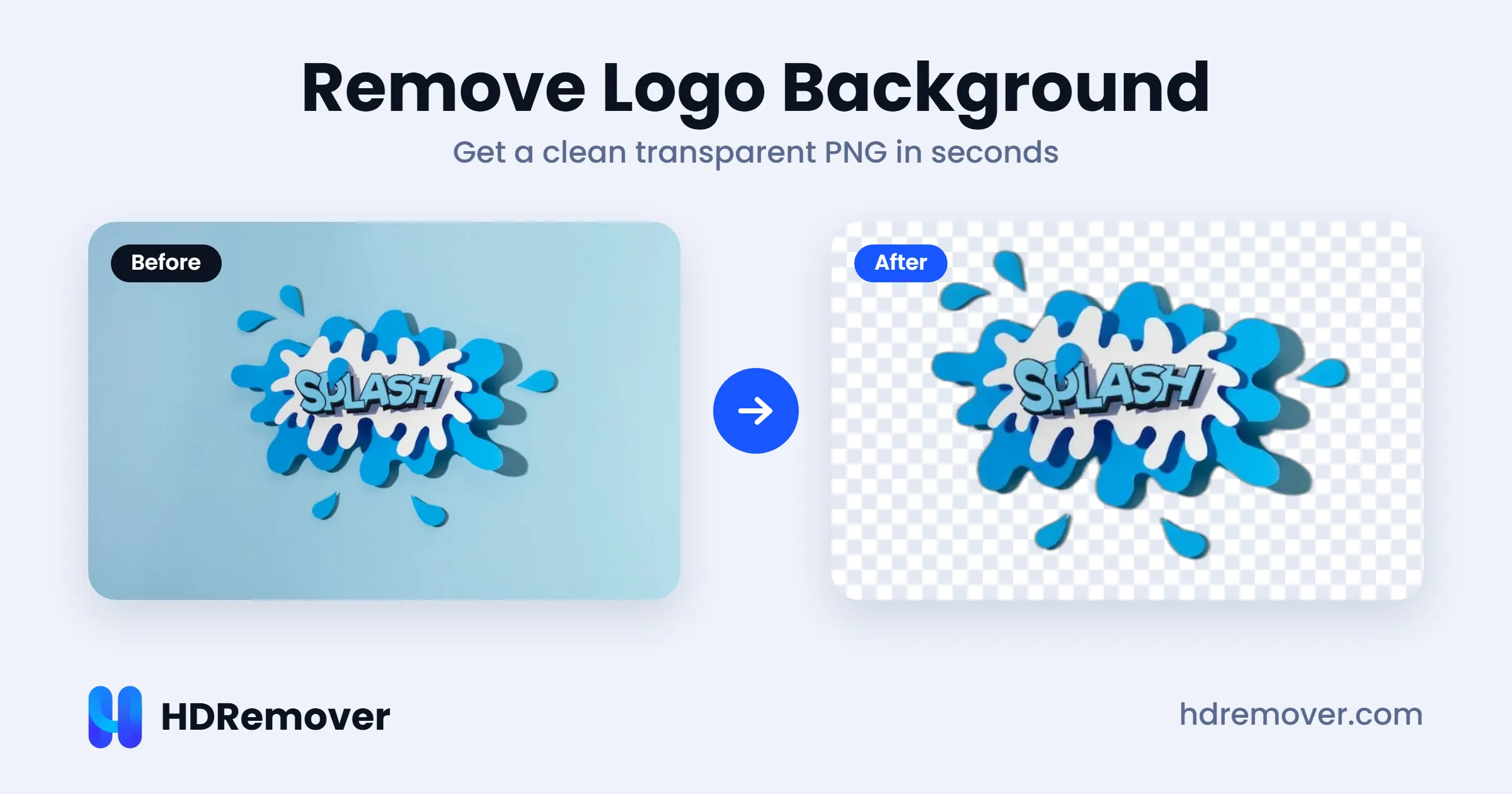
Why You Need to Remove the Logo Background
Most logos you find or receive come as a JPG or a PNG with a solid background, usually white. That is fine for a quick preview, but it causes real problems when you actually use the logo:
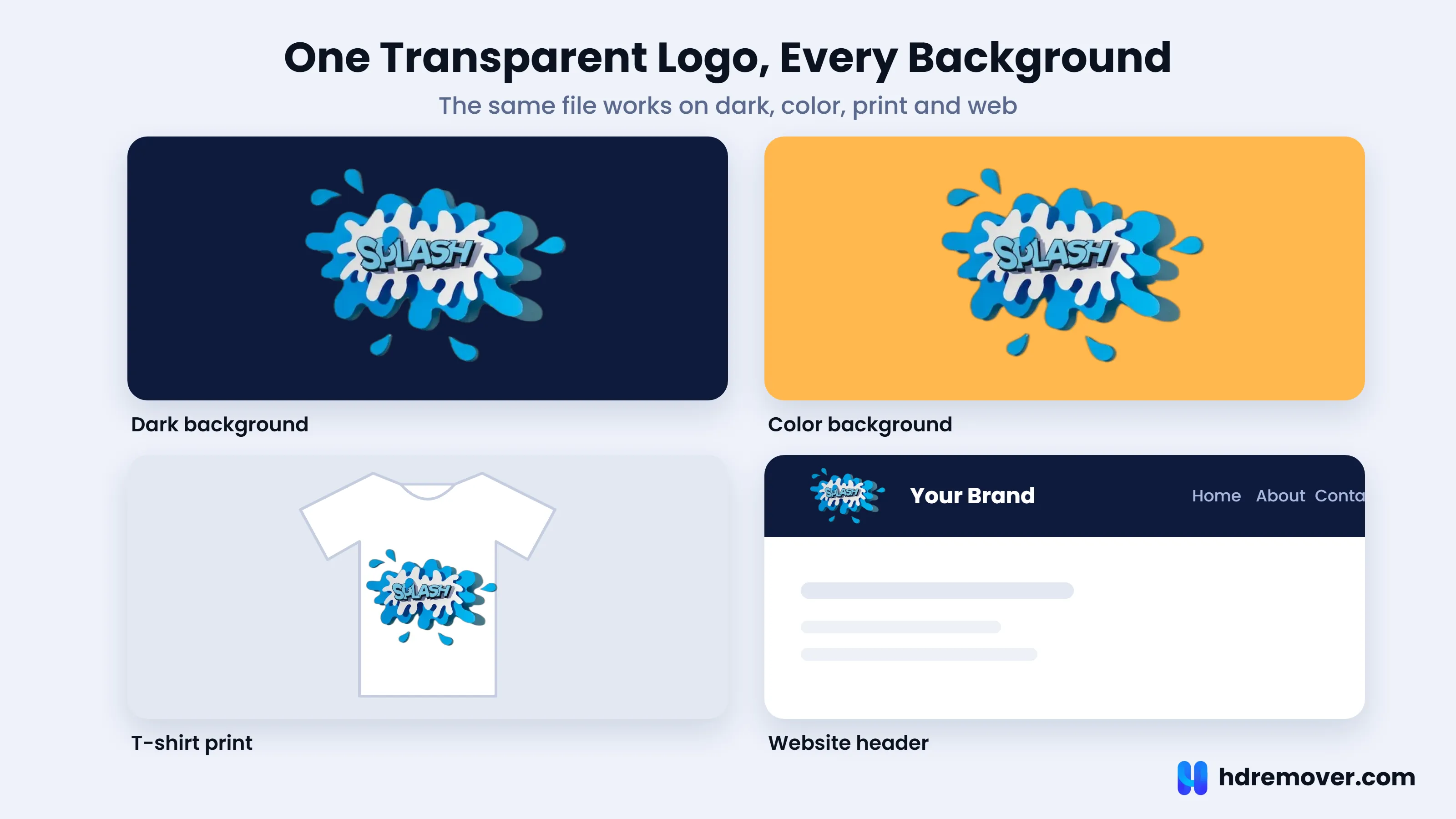
- On colored surfaces: The white box shows up on dark banners, colored slides, and product packaging mockups.
- On websites: A logo in a header or footer needs to blend with the page, not sit in a box.
- On products and print: Merchandise, stickers, and labels need a clean cutout.
- On marketing material: Partner logos on a sponsor slide or event poster must look consistent.
- On social media: Watermarks, profile overlays, and thumbnails all look better with a transparent logo.
Removing the background once gives you a reusable file that works in all of these places.
What Is a Transparent Logo?
A transparent logo is an image where the area around the logo shape has no color at all. Instead of white pixels, those pixels are empty, so whatever is behind the logo shows through. You will usually see this displayed as a grey and white checkerboard pattern in editing tools.
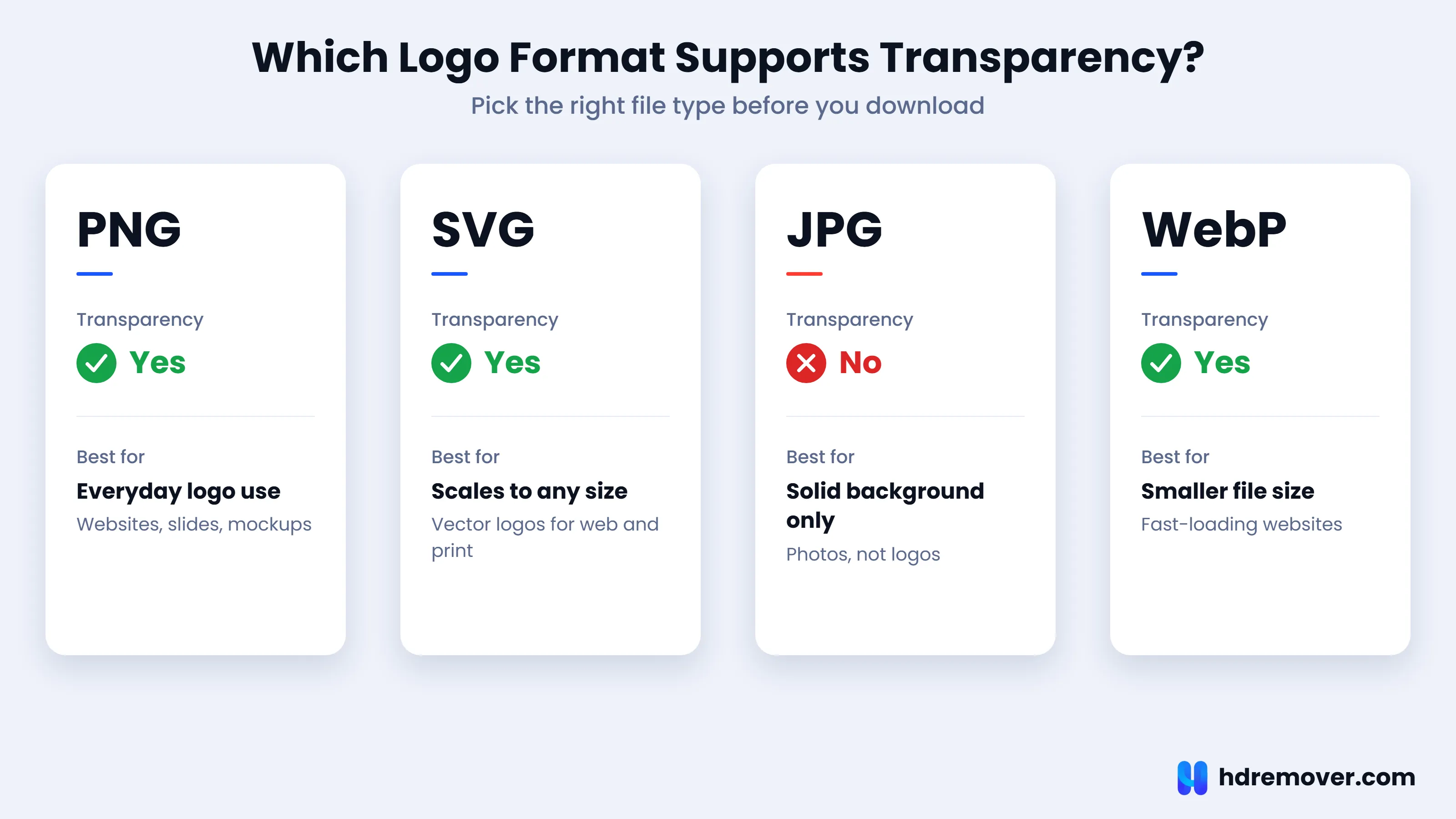
Only some file formats can store transparency. PNG, WebP, and SVG can. JPG cannot. This is why a logo saved as a JPG will always have a solid box around it, no matter how you place it.
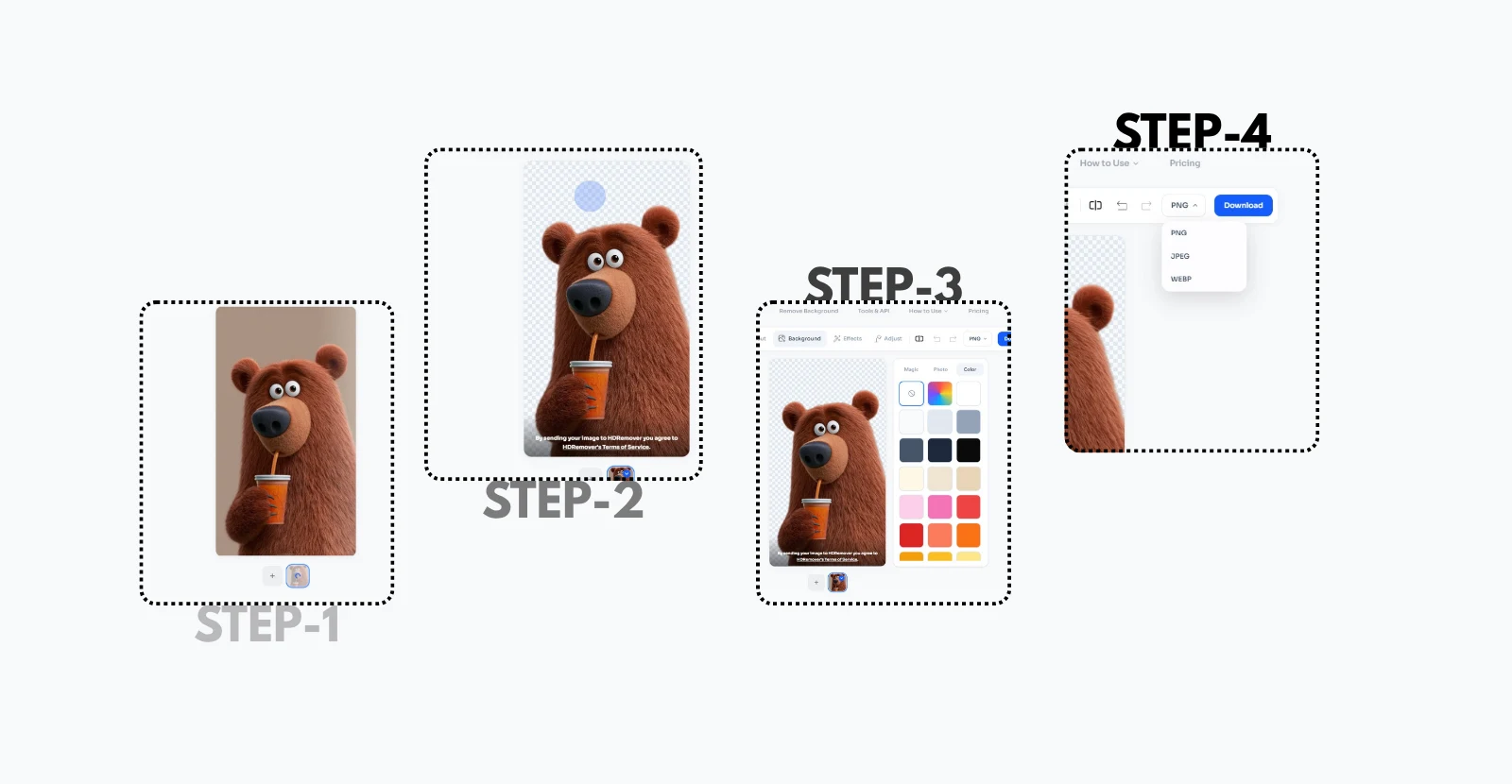
How to Remove Logo Background Online Free with HDRemover
HDRemover uses AI to find the logo, separate it from the background, and give you a clean cutout. No signup is needed, and you do not need to install anything. Follow these steps.
Step 1: Open the HDRemover Background Remover
Go to the HDRemover Background Remover. It works in any browser on desktop and mobile.
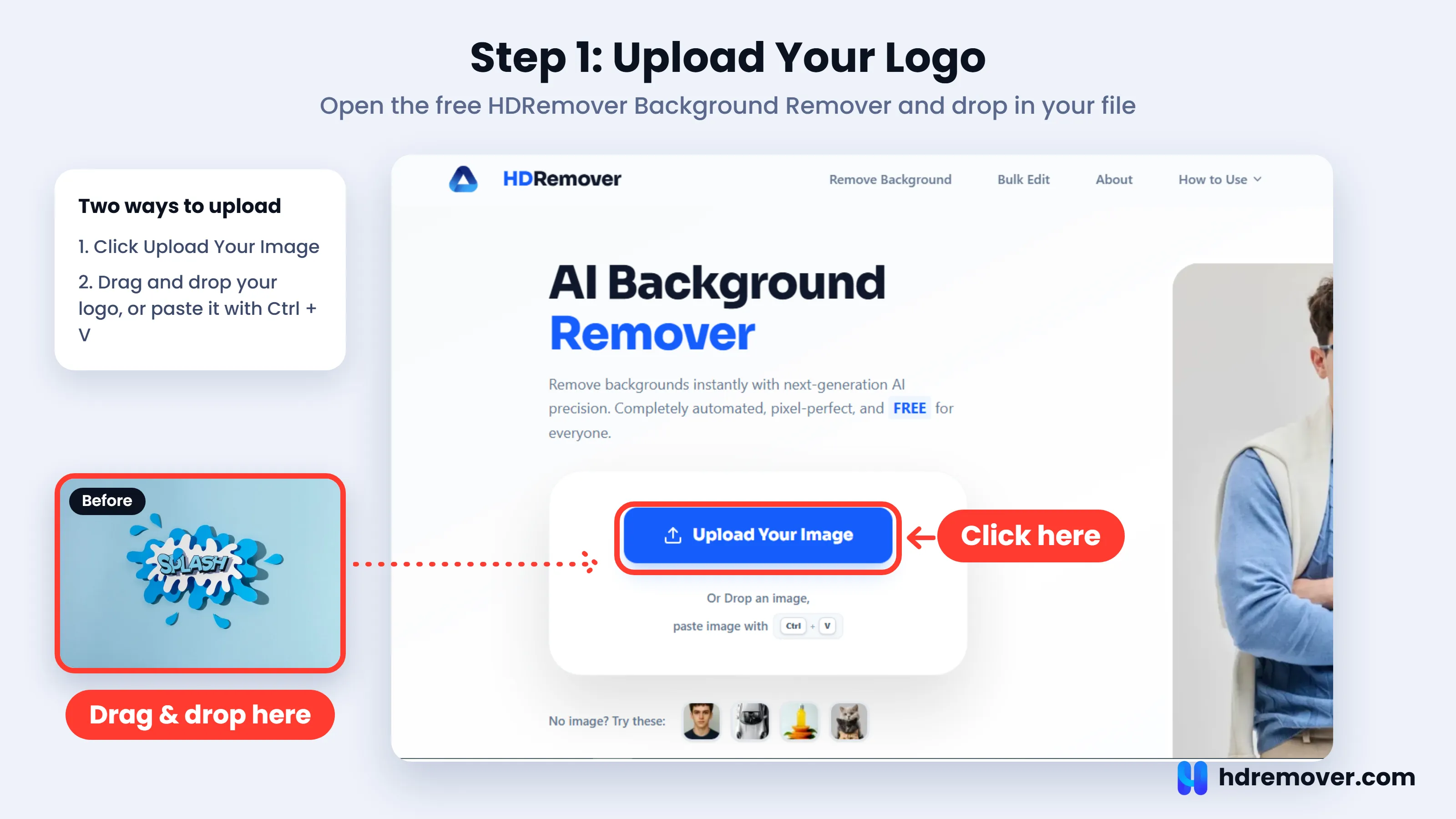
Step 2: Upload Your Logo
Drag and drop your logo file into the upload area, or click to choose it from your device. A JPG or PNG file works well. Higher resolution files give sharper results, so use the largest version of your logo you have.
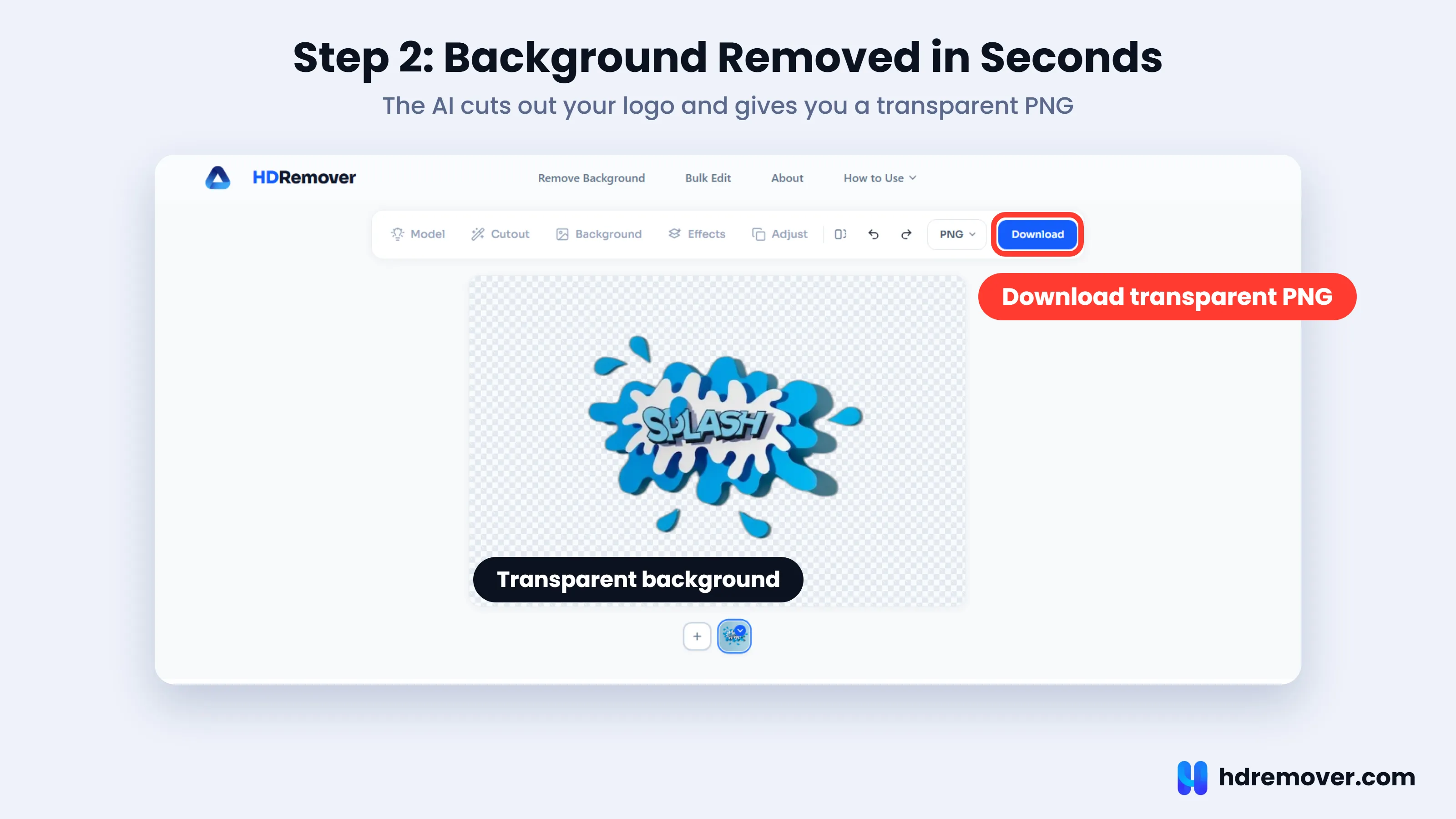
Step 3: Let the AI Remove the Background
The AI automatically detects the logo and removes the background. This usually takes just a few seconds. When it finishes, you will see your logo on a transparent checkerboard.
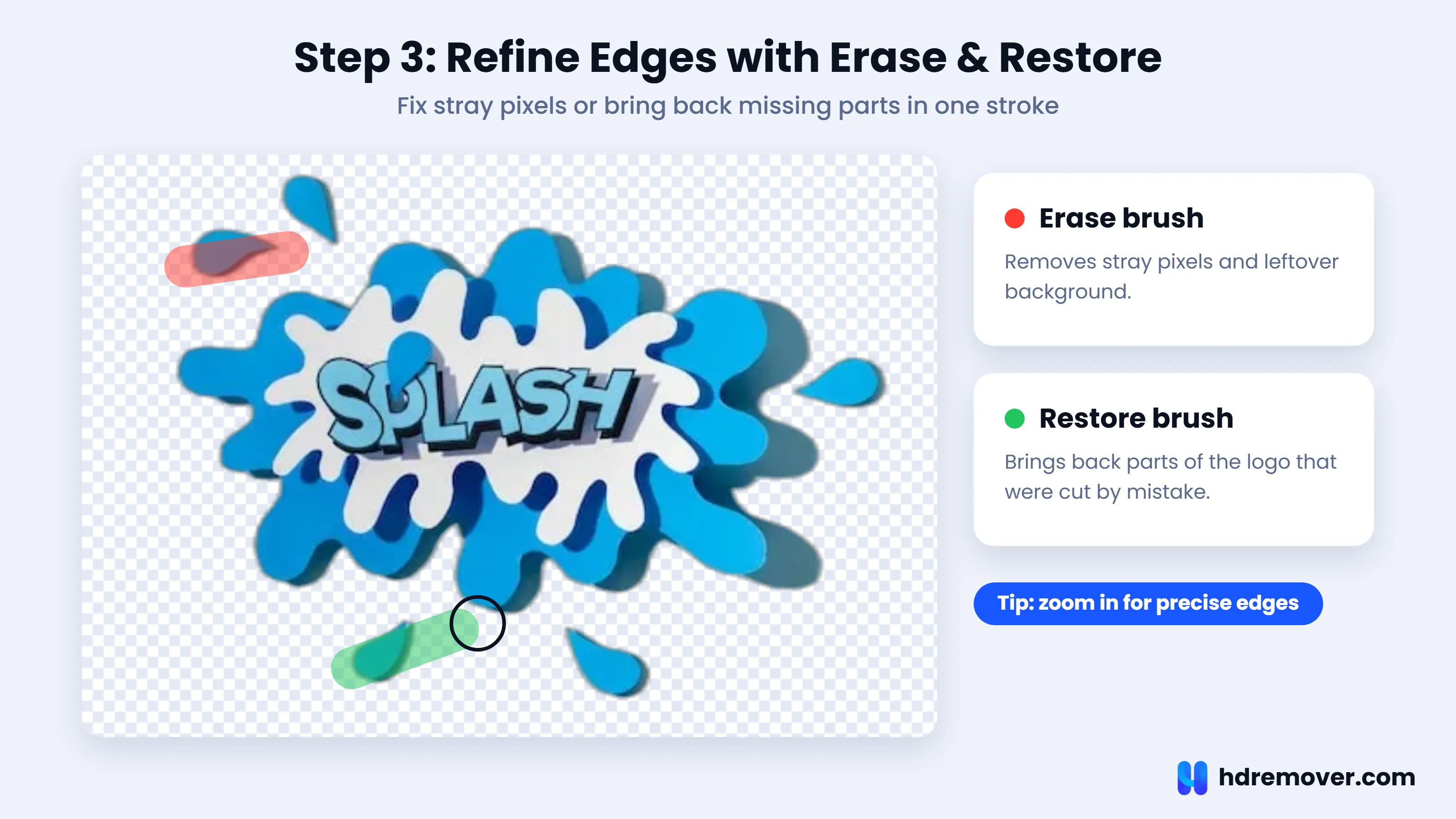
Step 4: Refine the Edges (Optional)
For most logos, the first result is already clean. If you notice a small leftover area or a missing piece, use the erase and restore brush. Erase removes stray pixels, and restore brings back any part of the logo that was cut by mistake. Zoom in so you can work precisely on the edge.
Step 5: Download Your Transparent PNG
When you are happy with the result, download the file as a PNG. This keeps the transparency, so you can place the logo on any background without a white box.
Pro Tips for a Clean Logo Cutout
A few small habits make a big difference to the final quality.
- Start with the biggest file you have. A larger source gives cleaner edges, especially around thin lines and small text.
- Prefer logos on a plain background. The more contrast between the logo and its background, the cleaner the cut.
- Check the inside of letters. Letters such as O, A, and R have enclosed spaces. Make sure those spaces are also transparent.
- Zoom in before you download. Check the edges at 200 percent to catch halos or stray pixels.
- Test on both light and dark backgrounds. A white edge that is invisible on white will show up on a dark background.
- Keep your original. Always save the original logo file in case you need to start over.
Common Problems and How to Fix Them
The logo still has a white halo
A thin white outline usually comes from a low-resolution source or from the original file having soft, blended edges. Use the erase brush to remove the leftover pixels, or start again with a higher resolution version of the logo.
The edges look jagged
Jagged edges are common when a small logo is enlarged. Upload the largest version available, and avoid scaling the file up before removing the background.
Part of the logo disappeared
If the AI removed a piece that belongs to the logo, such as a thin line or a light colored part, use the restore brush to paint it back.
The spaces inside letters are still filled
When the background shows through the inside of letters like O or A, check that those areas turned transparent. If not, use the erase brush to clear them.
The logo has a gradient or shadow
Soft shadows and gradients are harder for any tool because they blend into the background. For the cleanest result, remove the shadow first or use a version of the logo without it.
Which Logo File Format Should You Use?
Choosing the right format is as important as removing the background. Here is a quick guide:
- PNG: The best choice for most uses. It supports transparency and works everywhere, from websites to slides and print previews.
- SVG: A vector format that stays sharp at any size. Best for websites and for logos that were originally designed as vectors. AI background removal works on images, so if you have the original vector file, use that.
- WebP: A smaller file than PNG with transparency support. Good for fast-loading websites.
- JPG: No transparency. Use it only when you want a solid background.
How to Remove Backgrounds from Many Logos at Once
If you manage a brand portfolio, a list of partner logos, or a catalog of supplier marks, doing one file at a time becomes slow. The HDRemover desktop app is built for bulk editing, so you can process many images in one go and save hours of repetitive work.
Other Ways to Remove a Logo Background
There is more than one way to get a transparent logo. The right one depends on your tools and how much time you have.
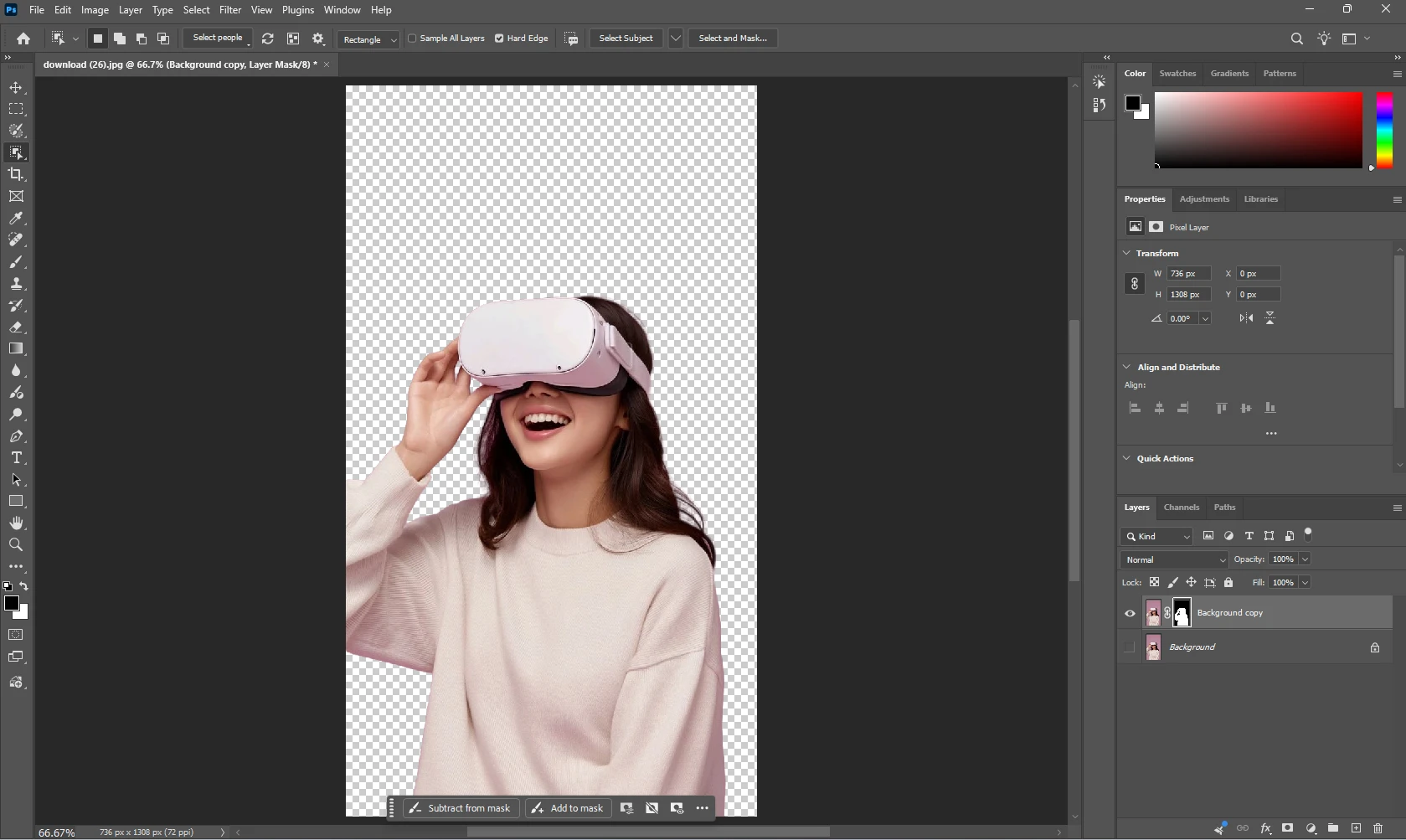
- Photoshop: Powerful and precise, but it needs a paid subscription and some skill. See our guide on how to remove background in Photoshop.
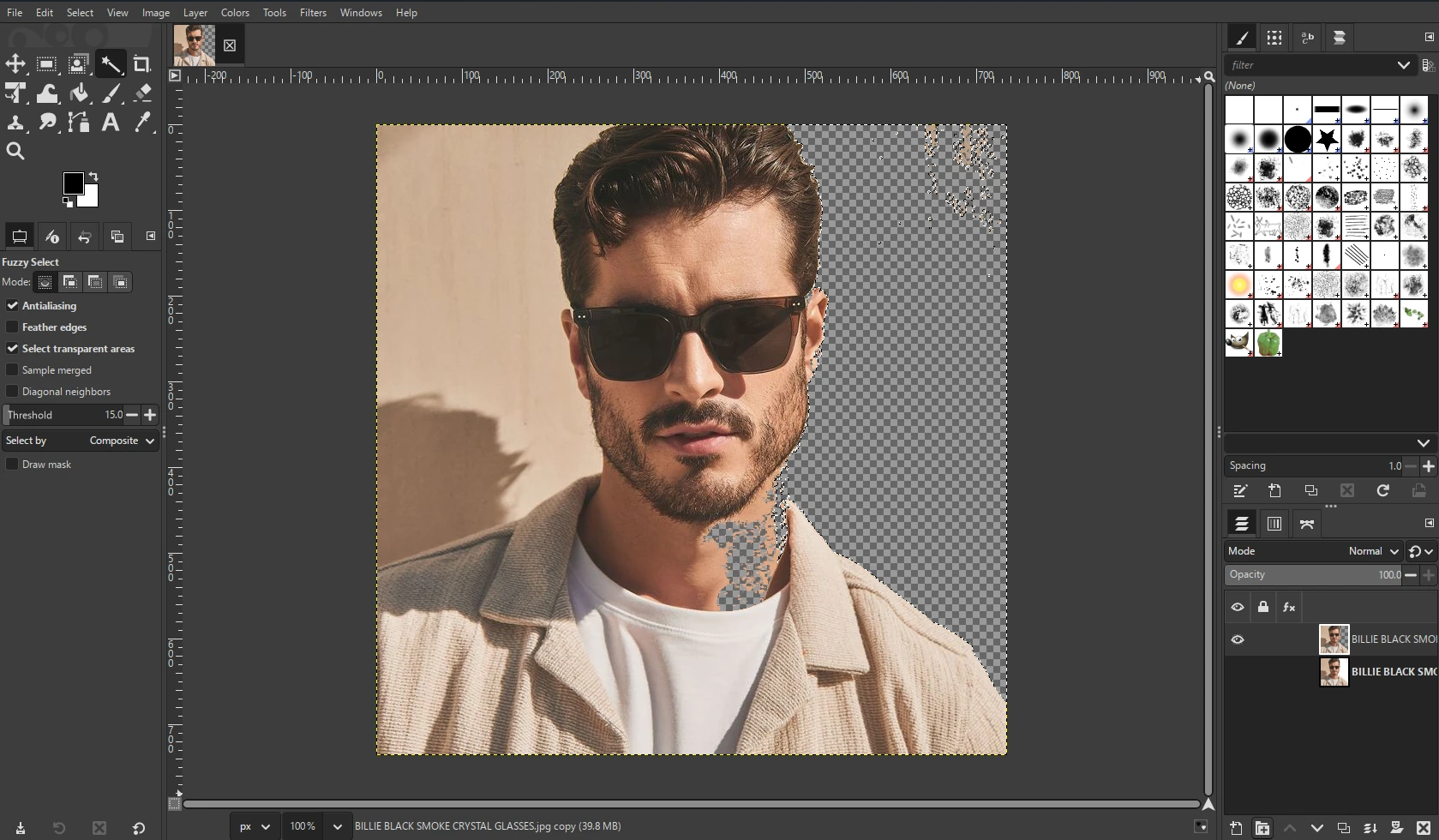
- GIMP: A free desktop editor that works but takes more steps. See our guide on how to remove background in GIMP.
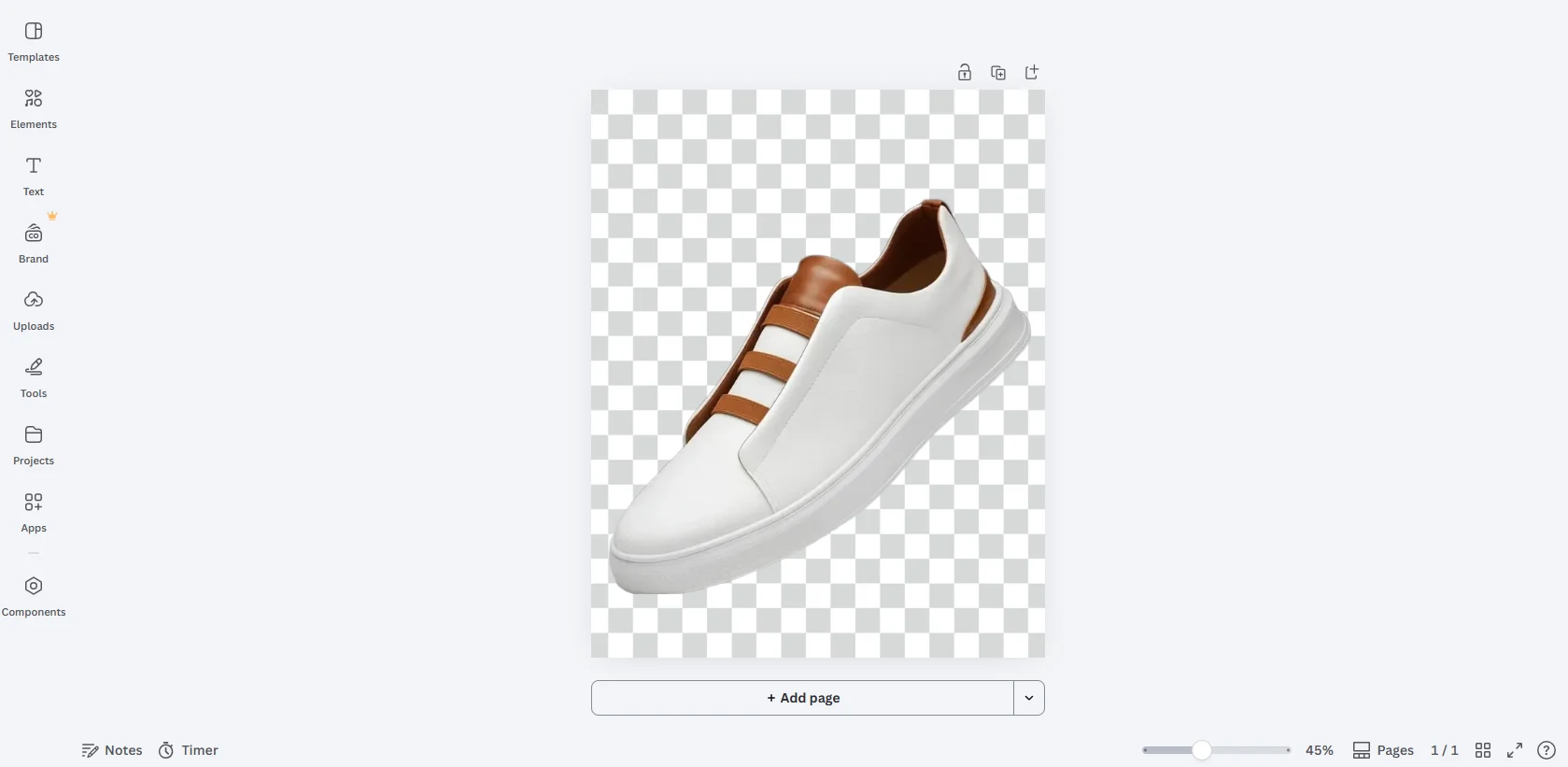
- Canva: Convenient if you already design there, though the built-in remover is a paid feature. See our workaround in how to remove background in Canva for free.
- HDRemover: Free, fast, and browser-based, which makes it the quickest route when you simply need a clean transparent PNG.
Once your logo is transparent, you might also want to place it on a new color or scene. Our guide to changing an image background online shows how.
Who Benefits from a Transparent Logo?
- Designers can drop client logos into mockups and layouts without manual masking. See HDRemover for designers.
- Online sellers can add a brand mark to product photos and packaging images. See HDRemover for e-commerce.
- Marketing teams can build sponsor slides, event posters, and campaign graphics faster. See HDRemover for marketing.
- Small business owners can finally use their logo on a website, invoice, or social profile without a white box.
Frequently Asked Questions
How do I remove a logo background for free?
Upload your logo to the HDRemover Background Remover. The AI removes the background automatically, and you can download the result as a transparent PNG for free.
How do I make a logo background transparent without Photoshop?
You do not need Photoshop. An AI background remover like HDRemover works in your browser and gives you a transparent PNG in seconds, without layers, masks, or manual selection.
Which format keeps a logo transparent?
PNG is the most common choice. WebP and SVG also support transparency. JPG does not, so a JPG logo will always have a solid background.
Can I remove a white background from a logo?
Yes. White backgrounds are one of the easiest cases because the logo and the background usually have strong contrast. Upload the file, let the AI process it, and download the transparent version.
Will removing the background reduce the quality of my logo?
Not if you start with a good source file. Use the highest resolution version you have and download as PNG. HDRemover is designed to keep high-resolution detail.
Do I need to sign up to use HDRemover?
No. The website tool is free to use without creating an account.
Can I remove backgrounds from many logos at once?
Yes. The HDRemover desktop app supports bulk editing, which is ideal when you have a lot of logos to process.
Conclusion
A clean, transparent logo is a small detail that makes your website, presentations, and products look far more professional. With HDRemover, you can remove a logo background in seconds, fine-tune the edges if needed, and download a transparent PNG that works on any background.
Ready to try it? Remove your logo background now with HDRemover and get a clean transparent PNG in a few seconds.
HDRemover.com