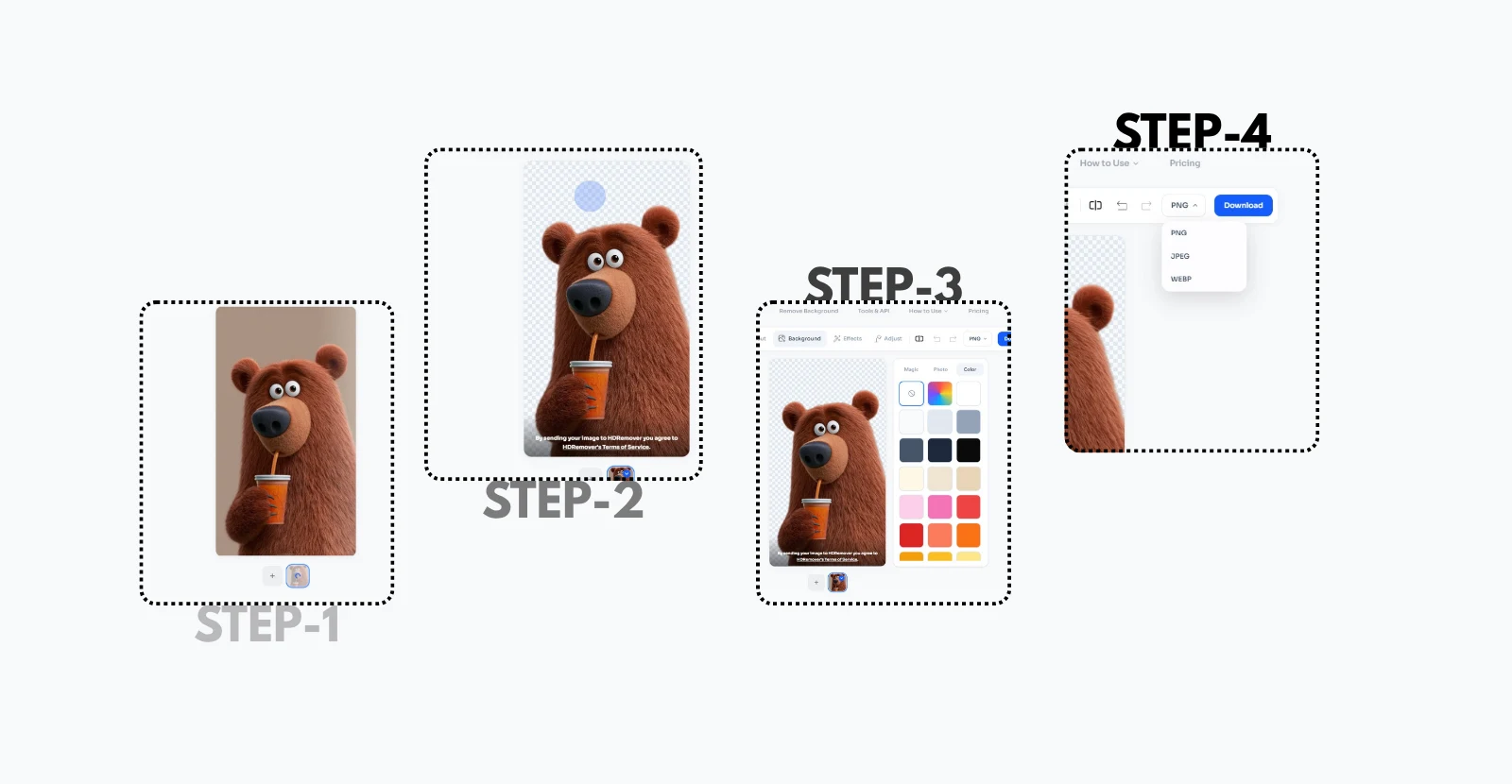
You open Canva, click on your photo, and go looking for the background remover — only to find it's locked behind Canva Pro. If you've searched for a canva background remover and hit that paywall, you're not alone, and you don't actually need to upgrade to get the job done. This guide shows you the free workaround: remove the background outside Canva in seconds, then drop the transparent image straight into your design like it was never there.
Why Canva's Background Remover Is Locked
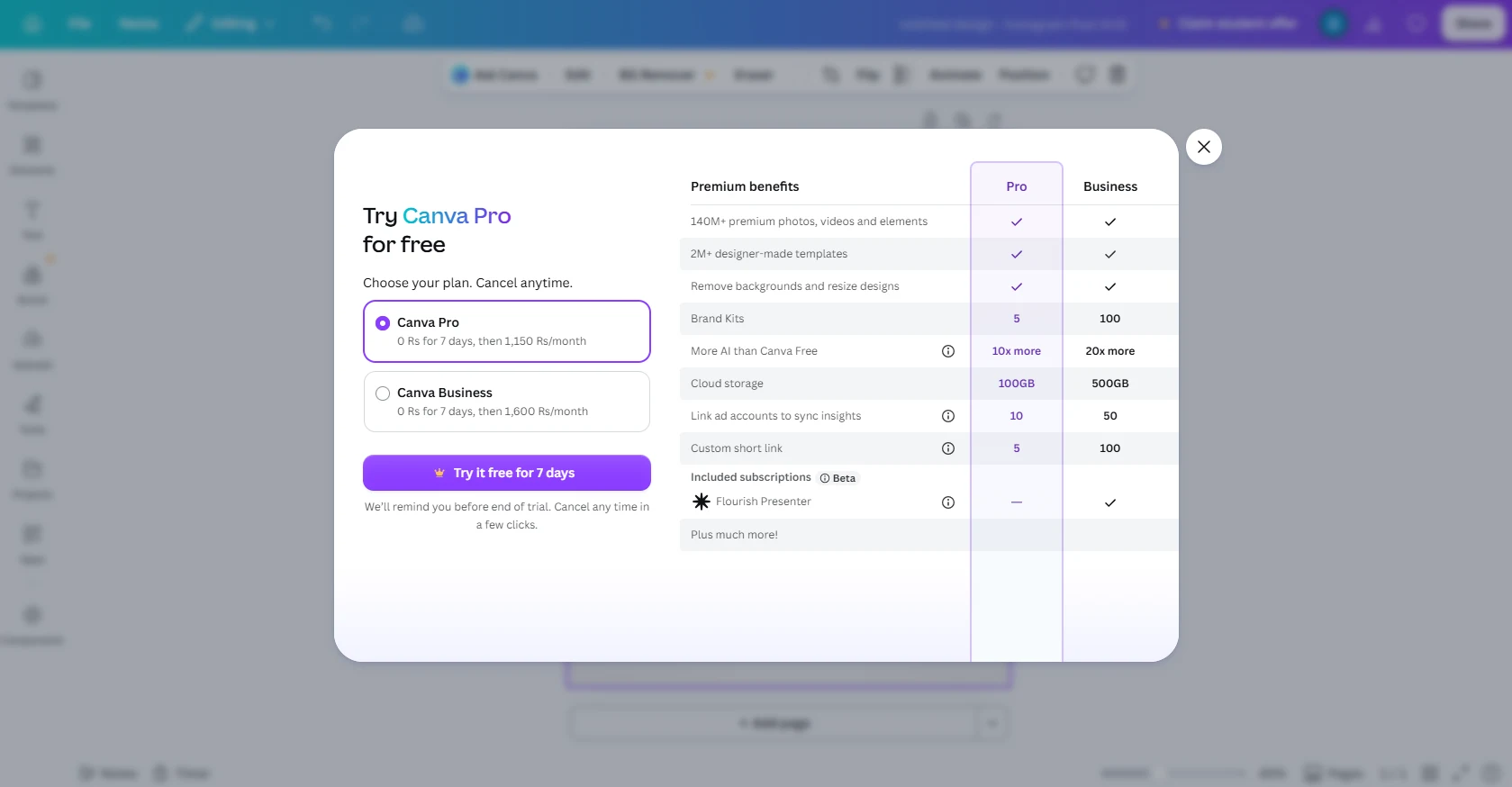
Canva's one-click "BG Remover" app is a Canva Pro feature it's built into the editor, but tapping it on a free account prompts an upgrade rather than actually removing anything. This catches a lot of people off guard, since most other Canva tools (text, shapes, basic photo editing) work fine on the free plan. If a canva background remover result is all that's needed for a single design, paying for a monthly or annual subscription just for that one feature isn't worth it for most people.
The Free Workaround: Remove the Background First, Then Import
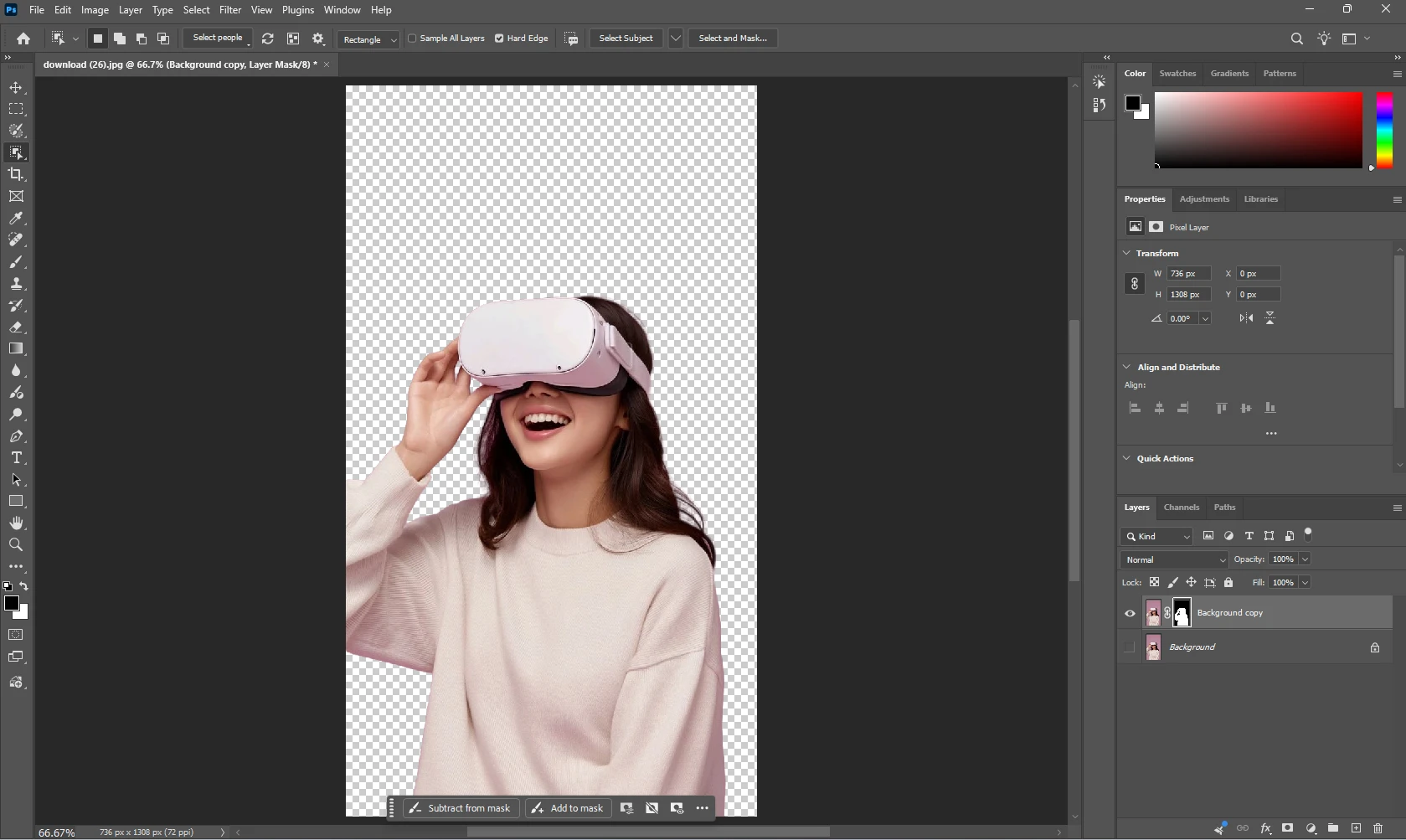
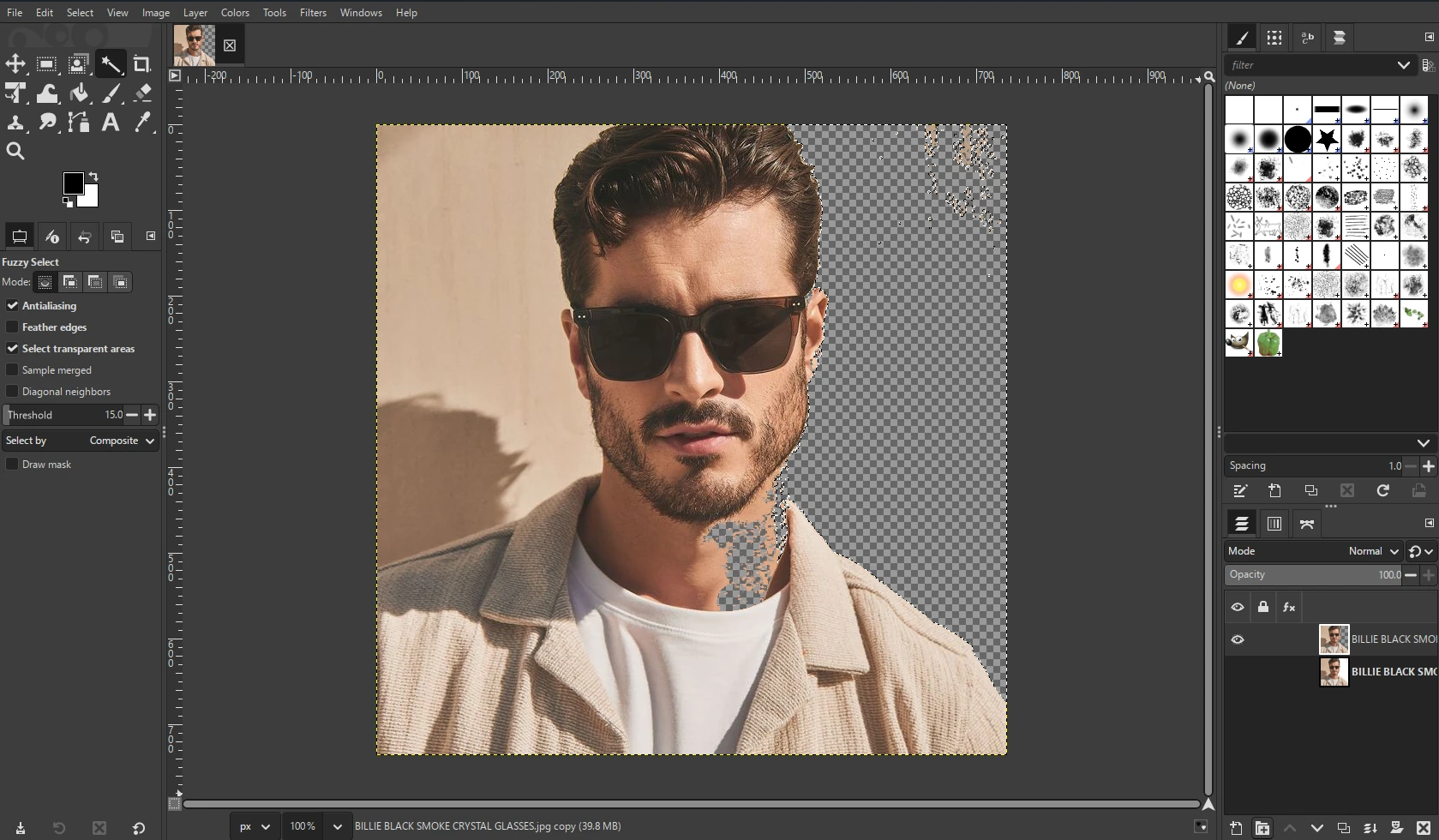
Canva doesn't need to know a background was ever there. The trick is simple: remove the background using a free tool outside Canva, save the result as a transparent PNG, then upload that PNG into a Canva design like any other image. Canva treats it exactly like a background-removed photo, because that's exactly what it is.
Step 1 — Remove the Background with a Free Tool
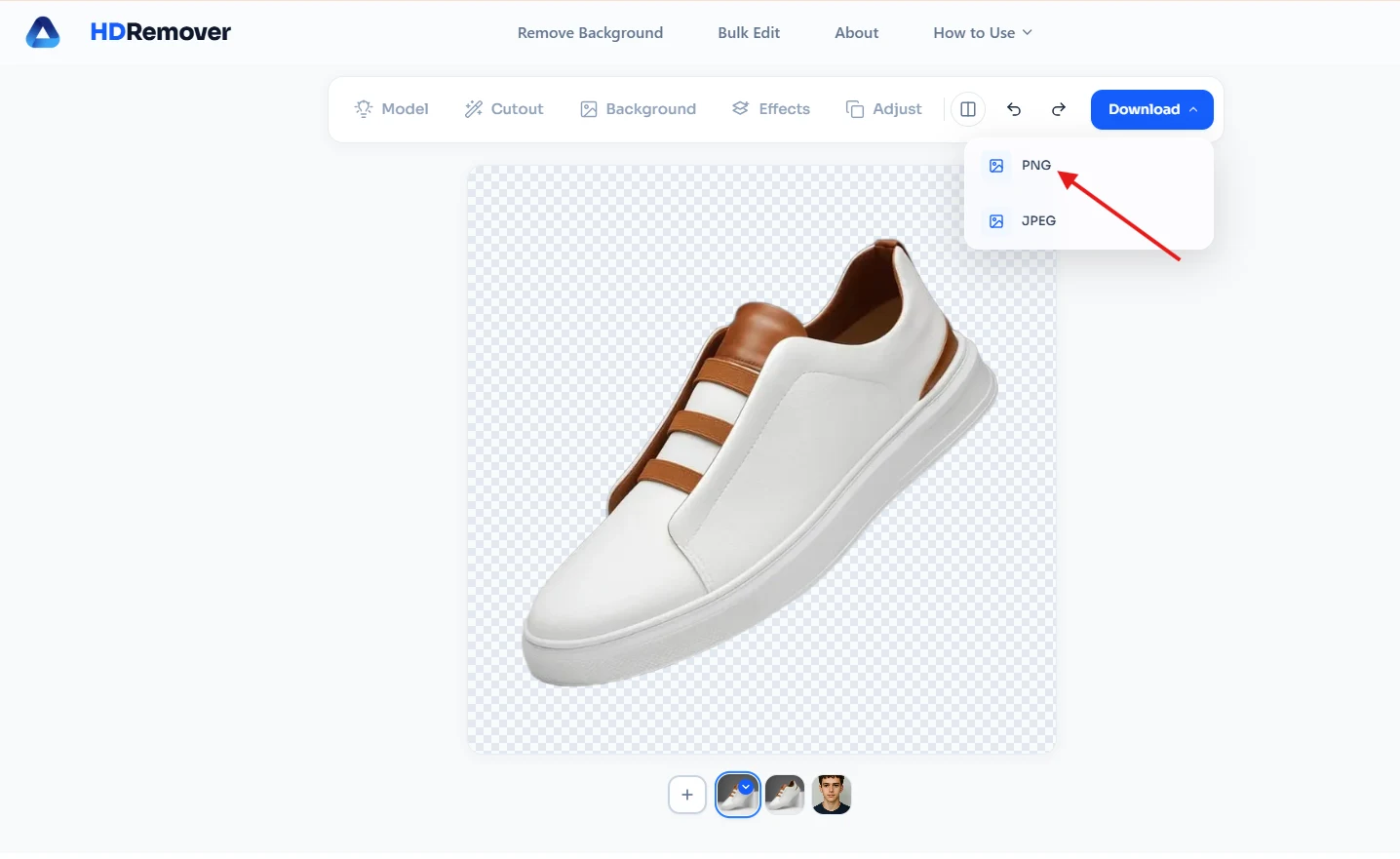
Any free AI background remover works here — the photo just needs to end up as a transparent PNG before it goes anywhere near Canva. HDRemover is a straightforward option: upload the photo, and the background is stripped out automatically in a few seconds, with no account or payment required. Once done, download the result as a PNG specifically — not JPEG, since JPEG files can't hold transparency and the "removed" background would just turn white or black when re-imported into Canva.
Step 2 — Upload the PNG into Canva
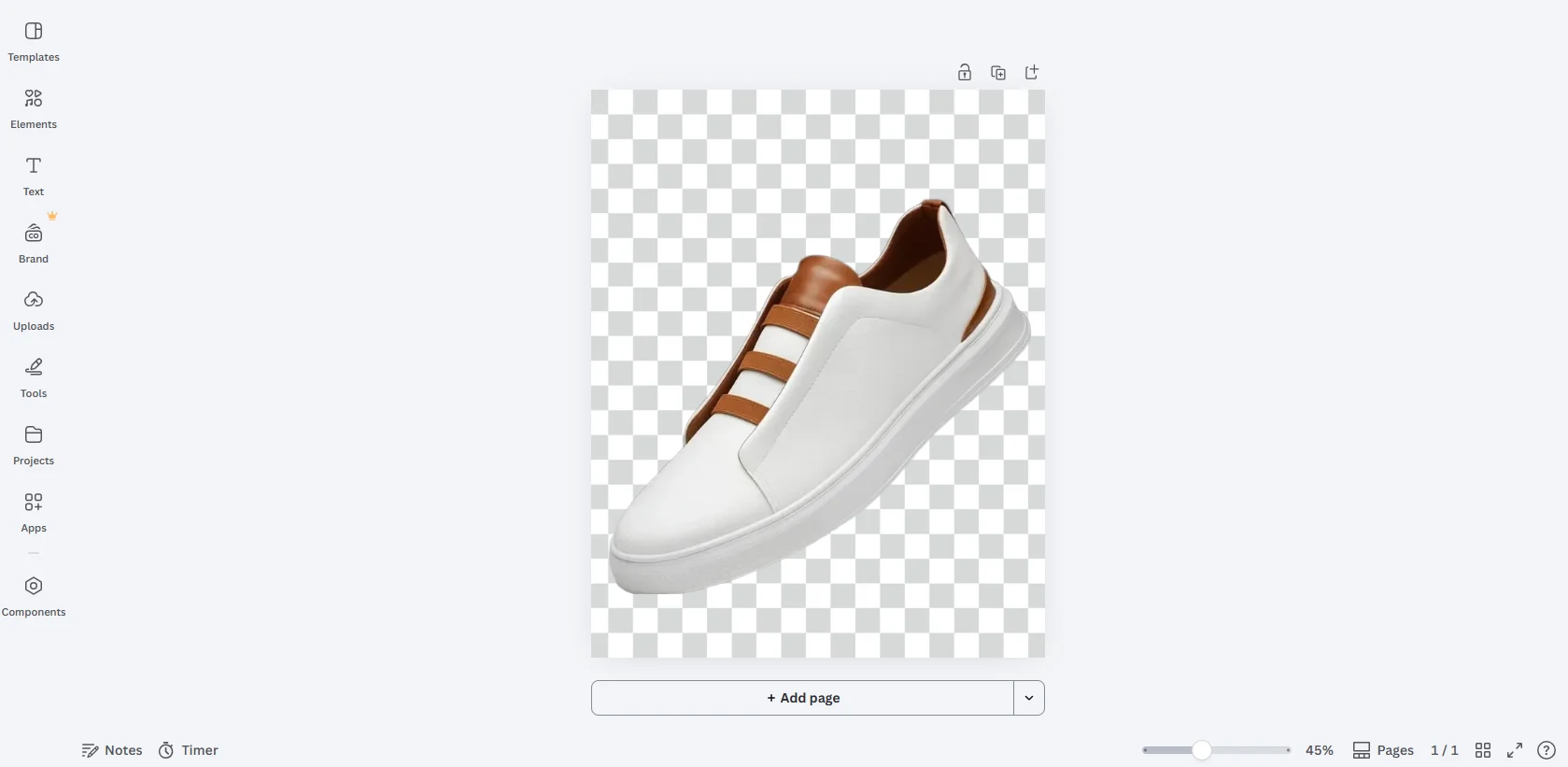
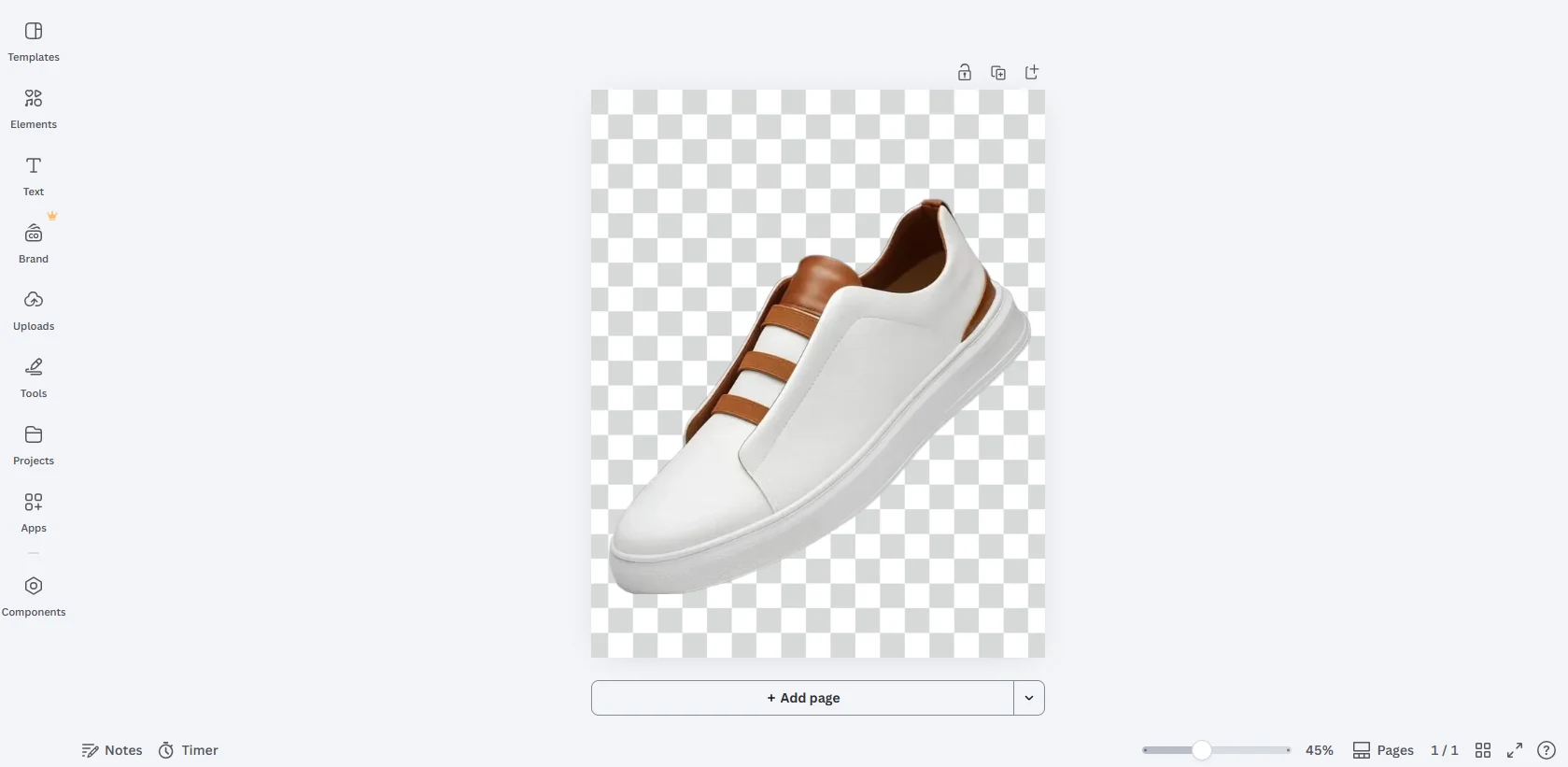
Inside the Canva editor, use Uploads > Upload files in the left-hand sidebar and select the transparent PNG. It appears in the Uploads panel exactly like any other image, keeping its transparency intact.
Step 3 — Drag It Into the Design
From there, drag the uploaded image onto the canvas. Since the background is already transparent, whatever is behind it in the Canva design — a solid color, a gradient, another photo — shows straight through, exactly like it would with Canva Pro's built-in tool.
Common Mistakes When Doing This in Canva
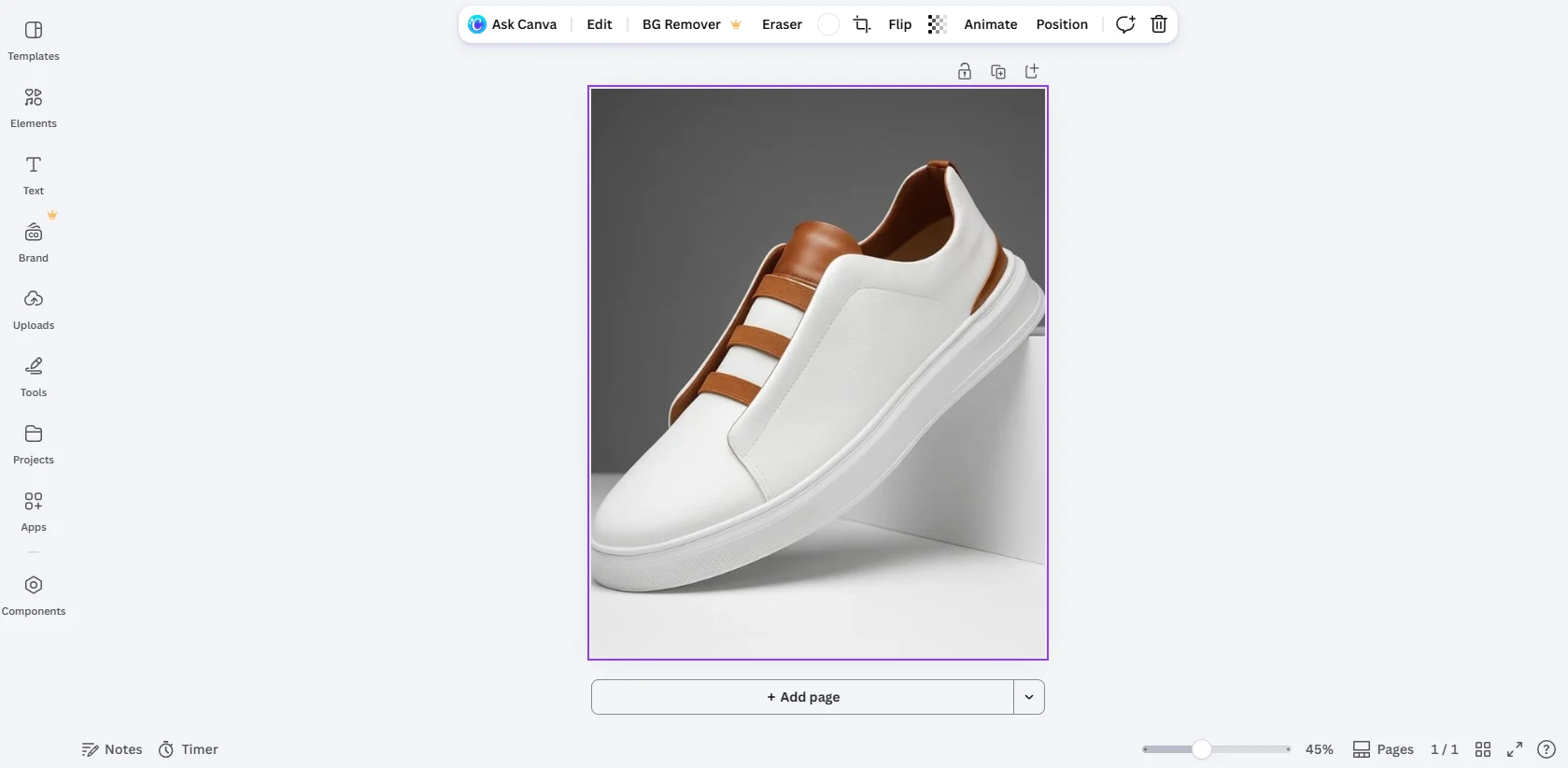
Uploading a JPEG instead of a PNG is the single most common issue. If the background comes back solid white after uploading to Canva, the export format was the problem, not Canva itself. It's also worth knowing that Canva can't "restore" transparency after the fact — once an image is flattened onto a solid background inside Canva, there's no built-in way to remove it again without Canva Pro, which is why removing the background before uploading avoids the issue entirely. A heavily compressed or low-resolution source photo can also leave rough edges after background removal, which becomes obvious once the image is placed over a different colored background in Canva.
Free Tool vs. Canva Pro: What's the Actual Difference?
For a one-off background removal, there's effectively no visible difference in the final result — both methods produce a transparent PNG that drops into a Canva design the same way. The real trade-off is workflow: Canva Pro's version is one click inside the editor, while the free workaround takes an extra minute outside Canva. For anyone doing this occasionally rather than constantly, that extra minute is a reasonable trade for not paying for a subscription.
Frequently Asked Questions
Does the free workaround work on Canva's free plan? Yes — since the background removal happens outside Canva, it doesn't touch Canva's Pro-only features at all. The free plan handles the upload and placement just fine.
Will the image quality be lower than using Canva Pro's background remover? Not necessarily — quality depends on the tool used to remove the background, not on whether Canva's own feature was involved. A good external tool can produce results just as clean.
Can this same PNG be reused in other designs later? Yes — once downloaded, the transparent PNG can be uploaded and reused across as many Canva designs as needed, with no repeat background-removal step required.