
You uploaded a photo to Photoroom expecting a clean cutout in two clicks, and instead you're staring at a template picker, a sign-up prompt, or a watermark you didn't ask for. If background removal is starting to feel more complicated than it should be, you're not alone, and there's a faster way through it.
1. Introduction
2. What Is Photoroom Background Remover?
3. How Does the Photoroom AI Background Remover Work?
4. Common Ways People Use a Photoroom Background Eraser
5. Limitations You Should Know Before Relying on Photoroom
6. Free Background Remover Tools Worth Comparing
7. HD Remover vs Photoroom: Which One Should You Use?
8. What Else HD Remover’s Editing Panel Can Do
9. How to Remove a Background in Seconds with HD Remover
10. Final Thoughts
11. Frequently Asked Questions
1. Introduction
If you have ever typed “photoroom background remover” into Google, chances are you needed one thing, and needed it fast: a clean cutout, no background, no hassle. Whether it is a product photo for an online store, a profile picture, or an image for a presentation, background removal has become one of the most common editing tasks people search for every single day.
Photoroom built its name around solving exactly this problem, and it has become one of the most recognized names in the background removal space. But it is not the only option, and depending on what you actually need, it might not even be the fastest one. This guide walks through what the Photoroom background remover does well, where people commonly run into friction, and what other background photo remover free tools look like in comparison, so you can pick the right one for your exact task.
2. What Is Photoroom Background Remover?
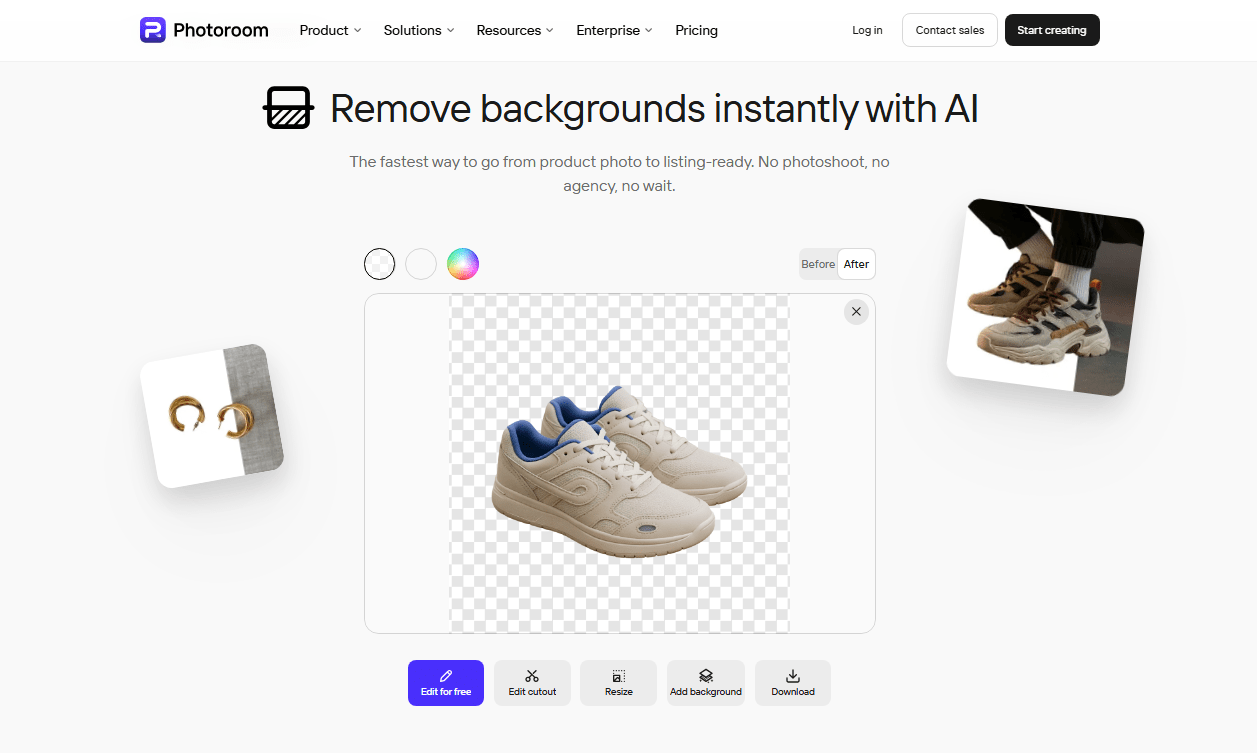
Photoroom is an AI-powered photo editing app that grew out of a simple use case: letting people remove backgrounds from images without needing Photoshop skills. Over time, the photoroom background removal feature expanded into a broader photo editor, adding templates, batch editing, and design tools aimed mostly at e-commerce sellers and social media creators.
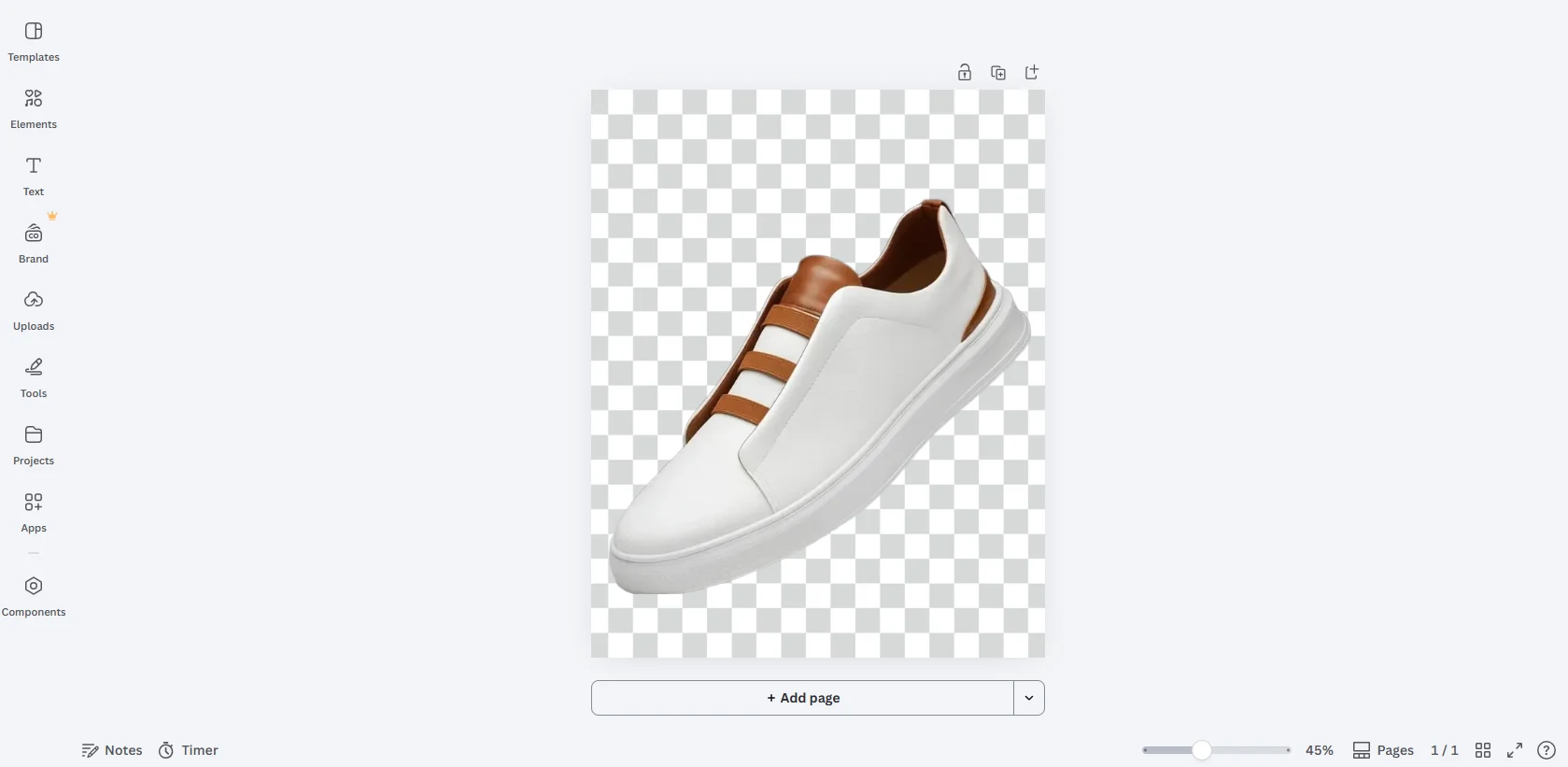
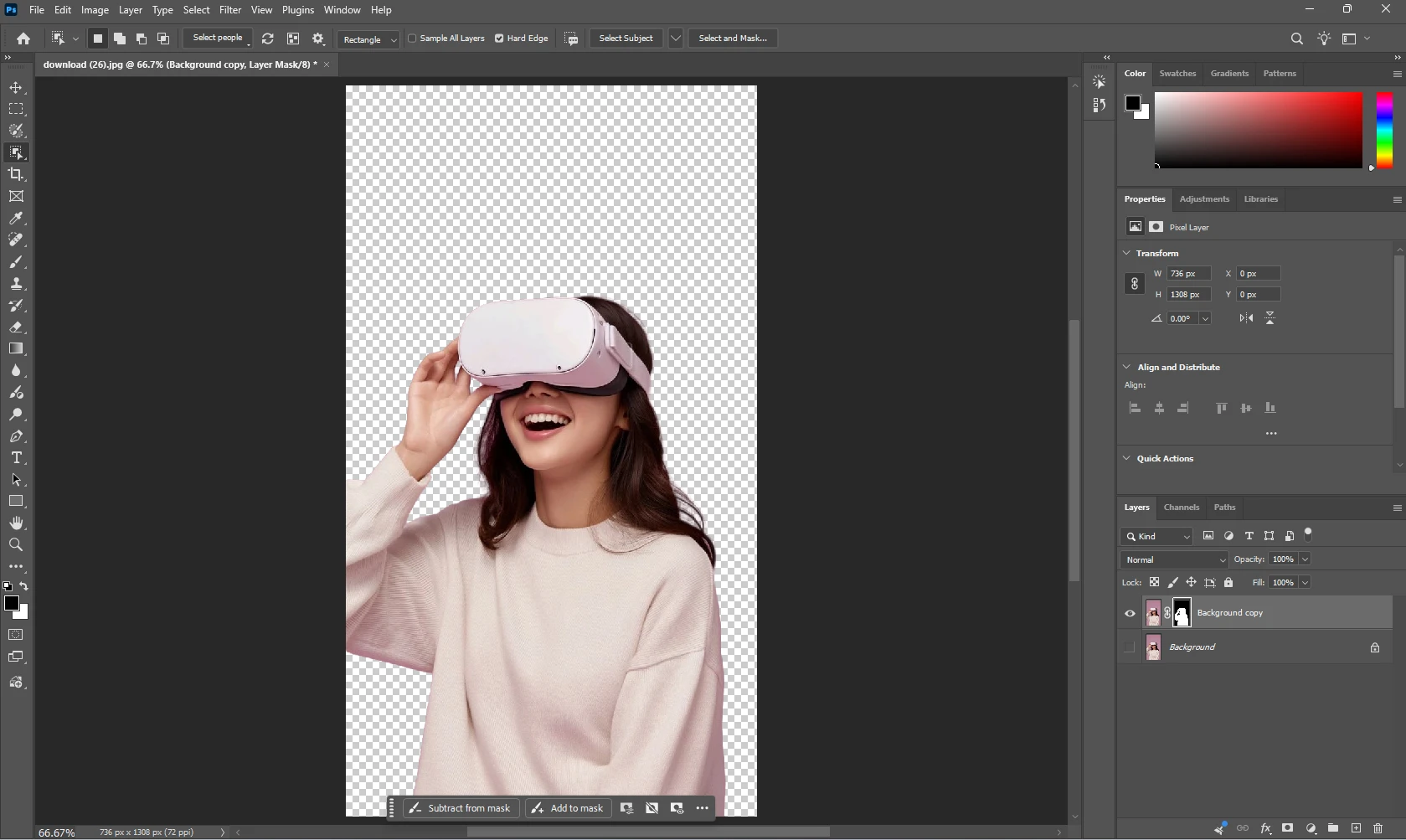
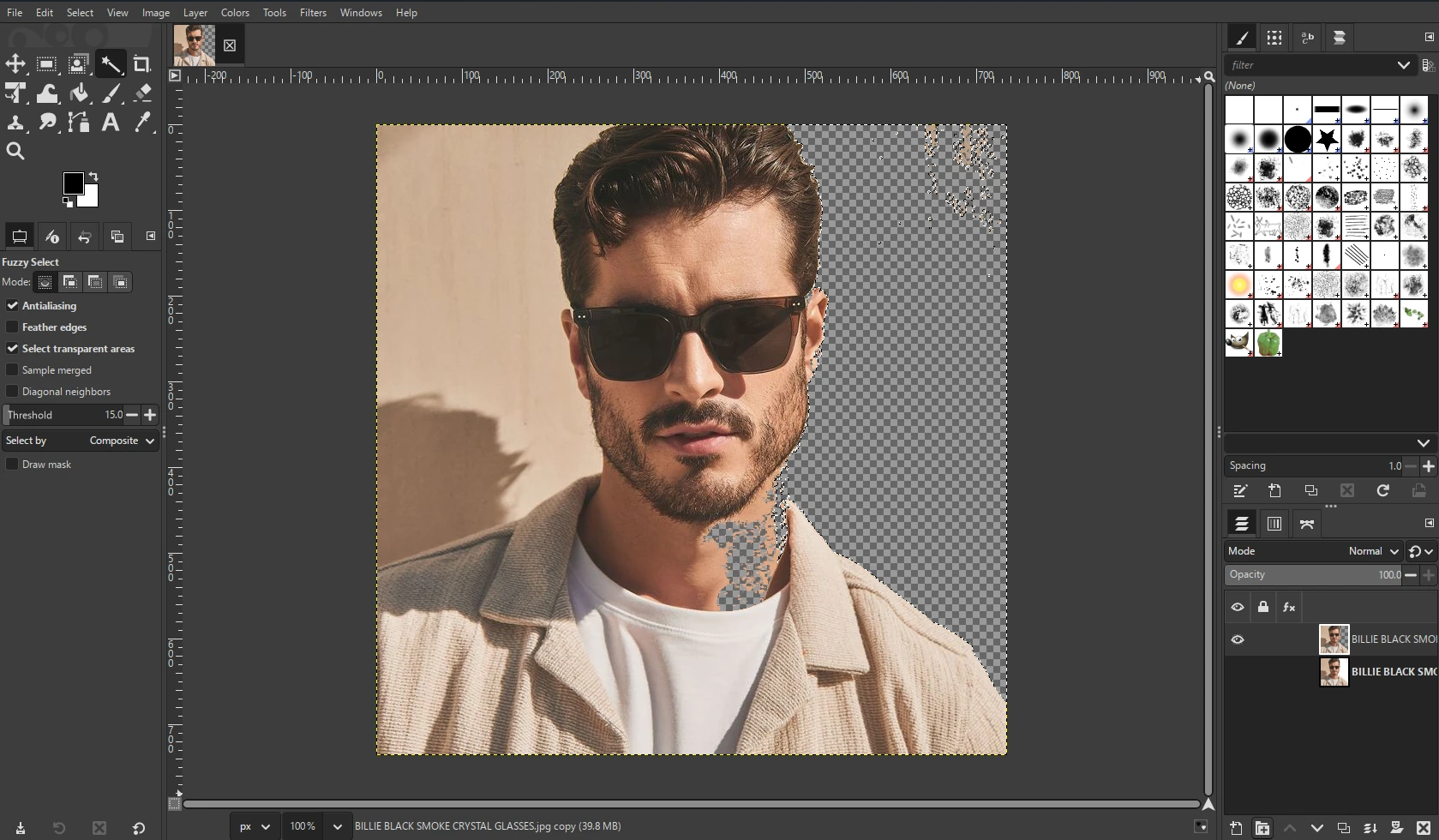
At its core, the photoroom remover identifies the main subject in an image, separates it from the background pixel by pixel, and gives you a transparent PNG (or a new background of your choice) in return. This is the same basic idea behind most modern bg remove tools, but the execution, speed, and interface differ quite a bit from one tool to another.
3. How Does the Photoroom AI Background Remover Work?

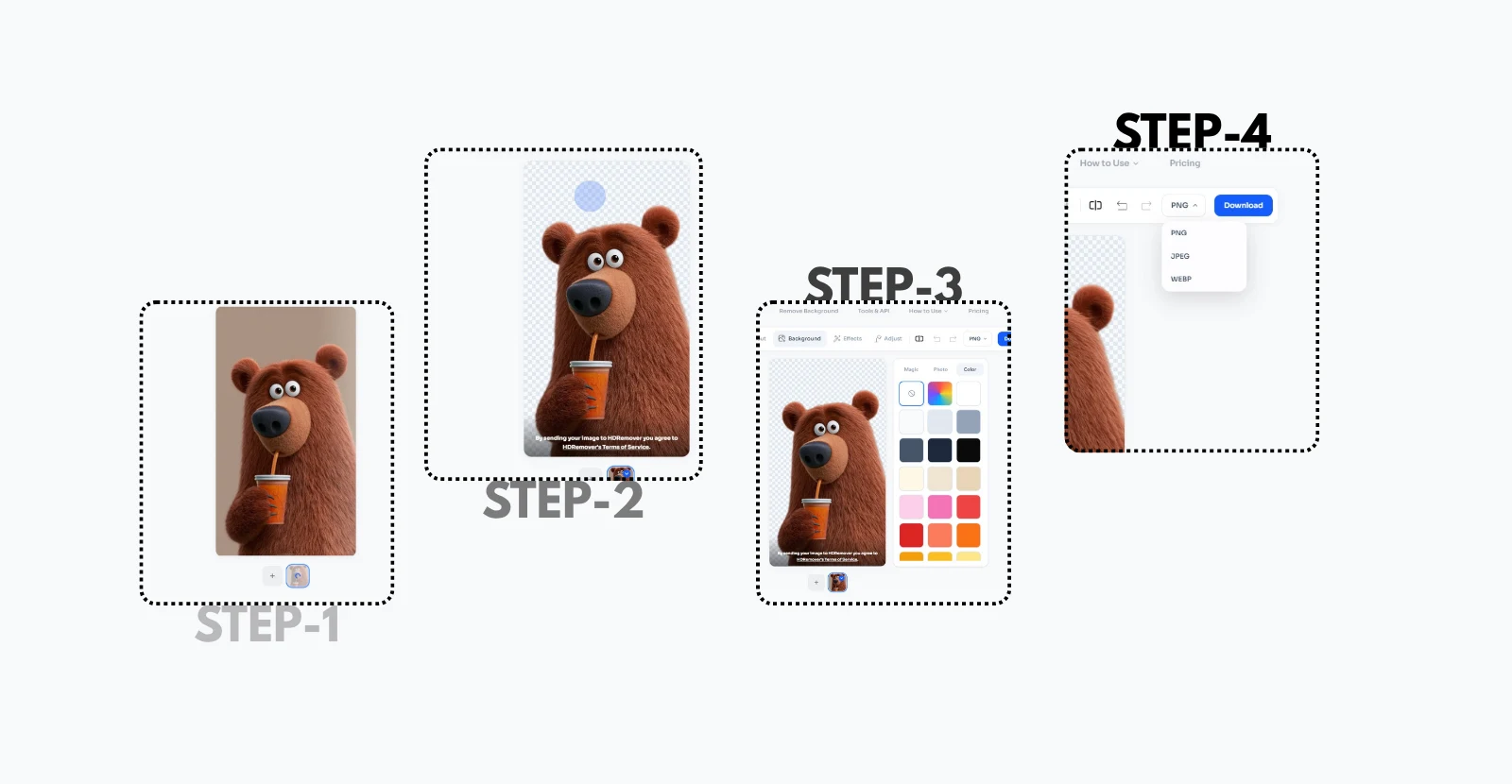
Like most tools in this category, the photoroom ai background remover relies on a segmentation model trained to detect the edges of a subject, be it a person, a product, or an object, and mask everything outside those edges. The process usually looks like this:
1. You upload a photo (phone or desktop)
2. The AI scans the image and detects the primary subject
3. The background is automatically erased, leaving a transparent layer
4. You can then export the cutout, add a new background, or continue editing inside the appThis workflow is fairly standard across the industry now. The differences between tools show up in edge accuracy (especially around hair, fur, or fine detail), processing speed, file size limits, and how much you can do without hitting a paywall.4. Common Ways People Use a Photoroom Background EraserThe photoroom background eraser tends to get used for a handful of very specific, recurring tasks:Product photography for online stores: sellers cut products out of cluttered backgrounds to place them on clean white or branded backgrounds for marketplaces like Amazon, Etsy, or ShopifySocial media content: creators isolate a photoroom image remover result to place it into new, more engaging templates.Profile and ID-style photos: people remove distracting backgrounds from headshots to keep the focus on the face.Marketing graphics: designers pull subjects out of stock photos to build custom banners or ads.If your task is one of these, you technically have dozens of tools capable of doing it. Some people search this as “bg remove photoroom” instead of the full phrase, but the intent is identical: upload a photo, get the subject isolated, move on. The real question is not which tool can technically do it, since most can, but which one respects your time while doing it.5. Limitations You Should Know Before Relying on PhotoroomNo background remover is perfect, and Photoroom is no exception. A few patterns show up often in user feedback and general usage:
App-first design: Photoroom leans heavily toward its mobile app experience, which can feel like overkill if you just want a quick browser-based cutout. Feature bundling: because Photoroom has expanded into a full design suite, the core photoroom background removal tool now sits behind templates, filters, and other features you may not need.
Free tier restrictions: like most background photo remover free tools, the free plan often comes with export limits, watermarks on certain formats, or resolution caps.
Learning curve for simple tasks: if all you want is “upload photo, get transparent background,” the extra design features can add friction rather than remove it.
None of this makes Photoroom a bad product. It makes it a broad one, and broad tools are not always the fastest for a narrow job.
6. Free Background Remover Tools Worth ComparingSearch intent around “photoroom background remover” overlaps heavily with a simpler, more direct intent: people just want their background gone, quickly, without signing up for a design suite. Some type the full brand name, others just search “bg remove photoroom” or “background remover” on its own, but they are all looking for the same outcome. This is where dedicated, single-purpose free background remover tools tend to win.Two names worth putting side by side here are Photoroom and HD Remover, since they represent two different philosophies: one is a full creative suite with background removal built in, and the other is built specifically around one job, doing it well.
When comparing free background remover tools in general, a few things are worth checking before committing to one:
Does the free plan actually deliver a usable file, or does it add a watermark, cap the resolution, or limit exports per day?
How many steps stand between upload and download? Every extra screen, template, or sign-up prompt adds friction to a task that should take seconds. Can you fine-tune the result, such as changing the background color or adding a shadow, or does the tool stop at the cutout and expect you to finish elsewhere?
Does it work in the browser, or does it require installing an app before you can even test it?
These questions matter more than the marketing on a tool’s homepage, since they determine whether a tool actually fits a quick, single-purpose task or ends up adding more steps than it saves.
7. HD Remover vs Photoroom: Which One Should You Use?
| HDRemover | PhotoRoom | |
|---|---|---|
| Core purpose | Built specifically for fast, oneclick background removal | Full photo editing and design suite with background removal as one feature |
| Speed to result | Upload and download in seconds, no extra steps | Often routes through templates and editing screens first |
| Learning curve | None, minimal interface | Steeper, more features to navigate |
| Object eraser | Included, for cleaning up unwanted objects or blemishes in a photo | Available as part of the broader editing suite |
| Editing controls | Detailed panel for background color, shadows, and blur, all in one screen | Spread across templates and separate tools |
| Best for | Anyone who just needs a clean cutout fast, with room to finetune the result | Sellers who want templates, batch design, and marketing graphics in one app |
| Access | Works directly in the browser | Primarily app-first experience |
Here is the honest way to think about it: if your intent matches “I need a background gone right now,” HD Remover is built exactly for that moment. It skips the templates, the design tools, and the extra screens, and gets you from upload to transparent PNG as directly as possible. That directness is the entire point of the product.
Photoroom, on the other hand, makes more sense if background removal is just one step in a larger design workflow, and you also want templates, batch tools, and marketing layouts in the same app.
Both tools are capable. The right one simply depends on whether you want a full editing suite or a fast, no-detour way to remove a background and get back to work.
8. What Else HD Remover’s Editing Panel Can Do
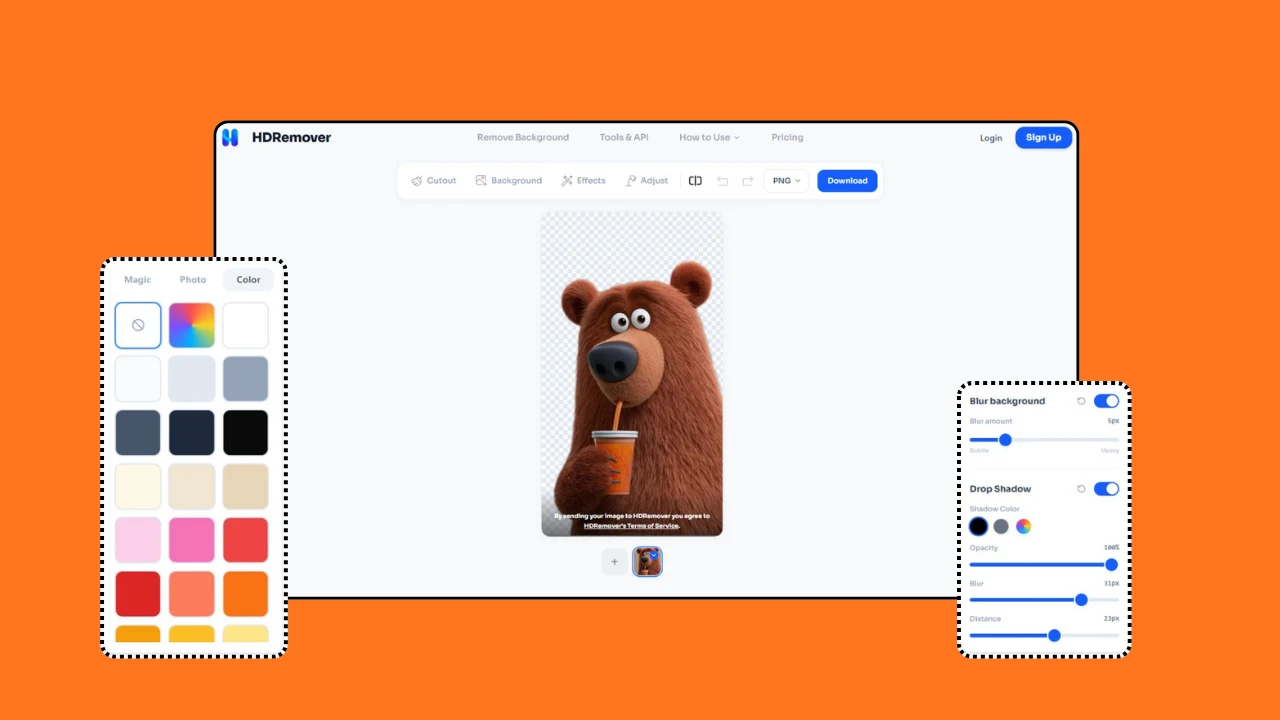
Removing the background is often just the first step. What happens after that, cleaning up the image, matching it to a new backdrop, or making it look naturally placed, is where a lot of free background remover tools stop short. HD Remover treats this part as core to the product, not an afterthought, with a detailed editing panel built into the same screen as the cutout itself.
Some of what is included:

Object eraser: remove unwanted objects, blemishes, or distracting elements from a photo without leaving the app or opening a separate tool.

Background color changer: swap in any solid color background in one click, useful for product photos that need to match a brand palette or marketplace requirement.

Custom background upload: replace the removed background with your own image instead of a plain color, for a more branded or contextual result.
Shadow generation: add a natural-looking shadow beneath the subject so the cutout does not look like it is floating on the new background.

Shadow control: adjust the angle, softness, and intensity of that shadow instead of accepting a fixed default.
Background blur: apply a depth-of-field style blur behind the subject, similar to a portrait mode shot, without needing separate photo editing software.
This combination matters because it covers a wide range of use cases from a single panel. An individual editing a profile photo, a developer pulling clean product cutouts through automation, and a designer building a full marketing asset can all use the same tool without switching between apps. Instead of removing a background and then exporting to Photoshop or Canva to finish the job, the entire process, cutout to polished final image, stays inside one editing panel.
9. How to Remove a Background in Seconds with HD Remover
For the specific intent behind “photoroom background remover,” meaning someone who just wants a clean cutout without extra steps, the process on HD Remover looks like this:
1. Open HD Remover in your browser, no download required
2. Upload your image (product photo, portrait, or object shot)
3. The AI detects the subject and removes the background automatically
4. Download your transparent PNG, or swap in a new background instantly
There are no templates to click through and no design tools to learn first. It is built around a single intent, get the background gone, and get out.
10. Final Thoughts
Photoroom earned its reputation by making background removal accessible to non-designers, and it remains a solid choice for anyone who wants an all-in-one design suite for product photography and social content. But if your search for “photoroom background remover” was really about one specific need, removing a background quickly and cleanly, a focused tool like HD Remover is built exactly for that moment, without the extra steps in between.
The best tool is always the one that matches your actual intent. If that intent is speed and simplicity, that is precisely the gap HD Remover was designed to fill.
11. Frequently Asked Questions
Is Photoroom free to use?
Photoroom offers a free tier, though like most background photo remover free tools, it comes with certain export or resolution limits on the free plan.
What is the difference between a background remover and a photo editor?
A background remover like the photoroom remover focuses on one task: isolating a subject from its background. A full photo editor adds templates, filters, and design tools on top of that core function.
Can I remove a background without downloading an app?
Yes. Browser-based tools like HD Remover let you upload, process, and download images directly, without installing anything.
Which tool is faster for simple background removal?
For a single, focused task, purposebuilt tools tend to be faster since there are no templates or extra screens to navigate before reaching the result.
Can I edit the background after removing it, not just delete it?
Yes. HD Remover’s editing panel lets you change the background color, upload a custom background, add and control shadows, and apply background blur, all after the initial cutout, without needing a separate editor.
Does HD Remover work for developers who need this in bulk or through automation, not just manual uploads?
The same editing panel and cutout engine that individuals use for one-off photos is built to support product, design, and development workflows alike, since the underlying task, clean subject isolation plus editing controls, stays the same regardless of scale.