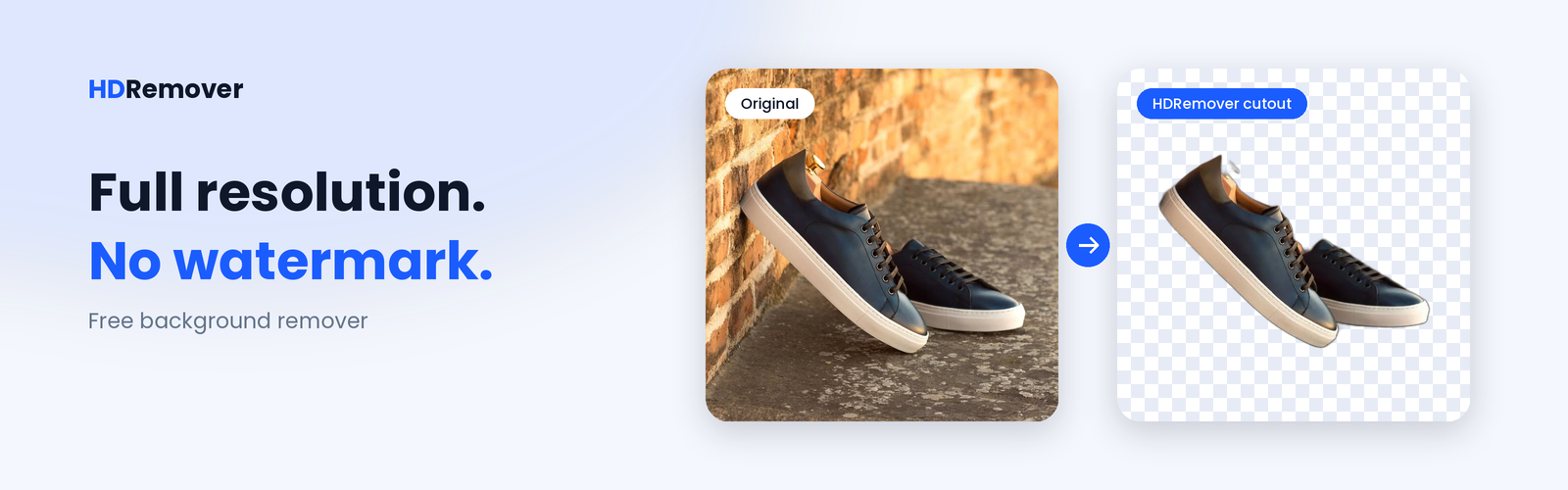



Every cutout looks fine as a thumbnail. Open it at full size and the differences show: fur, loose hair, the rim of a glass. HDRemover is a free background remover built for that closer look. You upload a photo and download a full-resolution PNG with a transparent background, with no signup and no watermark. This post covers what full resolution changes in practice, how to choose a format, and what to look for if you’re coming from remove.bg, Photoroom, Removal.ai, Adobe Express, Canva, Erase.bg, Slazzer or any other free bg remover.
What a clean cutout looks like at full size
The best test for any background remover is your hardest photo. Pick one with hair, fur or a knitted sweater, download the result, and open it at 100% in any image viewer or editor. Then follow the outline slowly, the way you would proofread a page.
A good cutout keeps the texture of the edge: individual strands, the soft transition where fur meets air, the clean corner of a box. A poor one replaces all of that with a smooth, uniform line, like a sticker cut with kitchen scissors instead of a die cutter.
From a distance you can’t tell the difference. On a large banner, a printed flyer or a retina screen, you can. That gap is why the edge, not the overall shape, is the real measure of a background remover.
Why full resolution matters after the cut
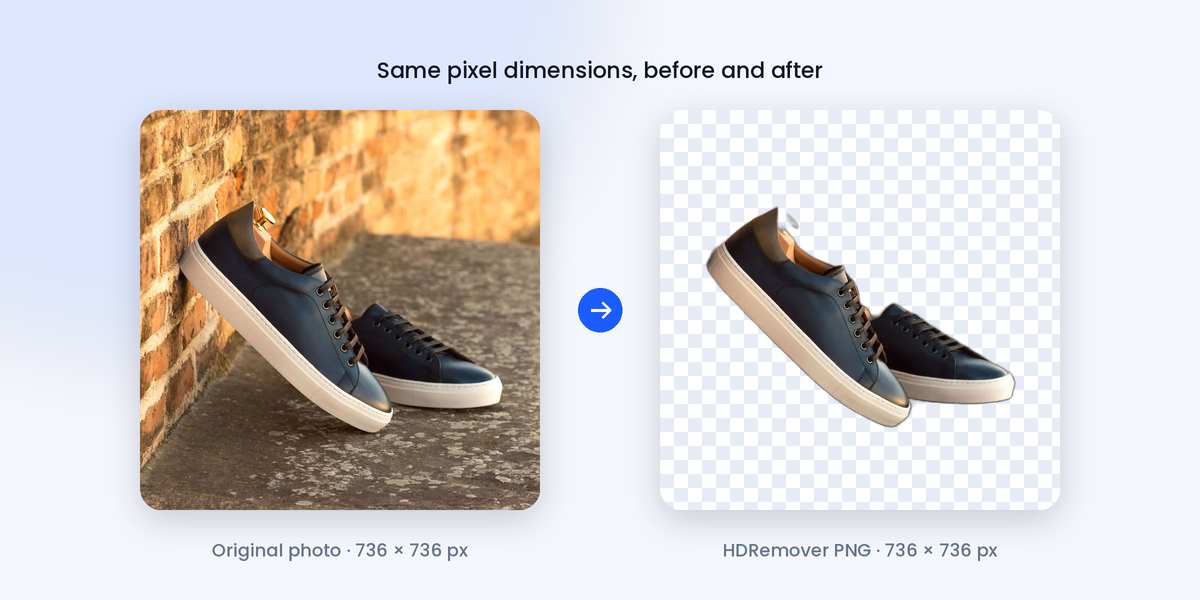
You can always make an image smaller. You can’t get the pixels back once they’re gone.
A cutout is rarely the final file. It gets placed into a product page, a social template, a presentation or a print layout, and each of those may need a different size. A cutout that keeps the resolution of your original gives you room to crop in, scale up for print or stretch across a wide hero banner without softness creeping in. A reduced-size cutout works for a chat message and fails the moment someone asks for the same file in a larger layout.
HDRemover exports the cutout at full resolution, so the decision about how small to go stays with you.
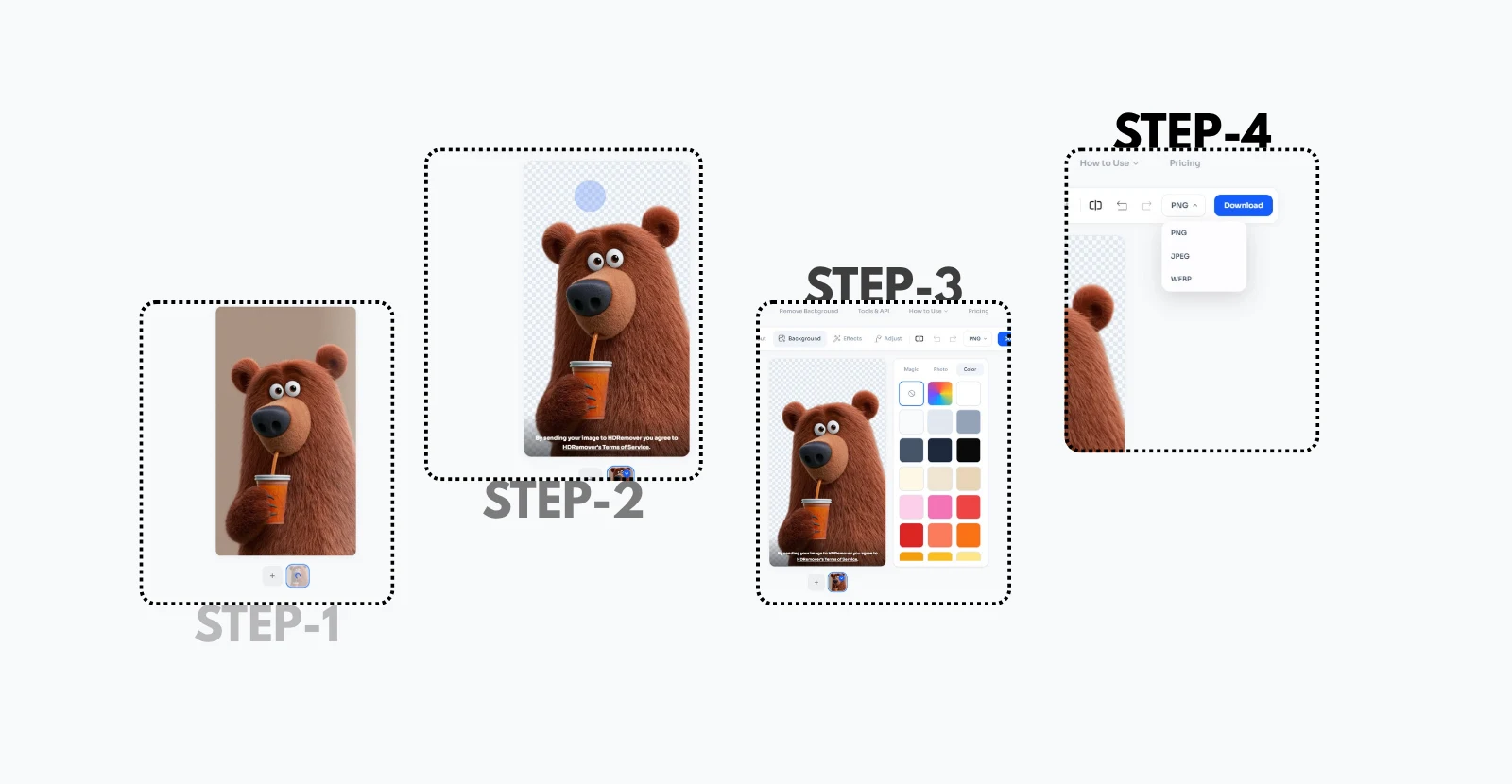
How to remove a background in five steps
The whole process is short. Here is what to do at each step, and what to check before you move on.
- Open the tool. Go to the background remover tool. There is nothing to sign into, so you land directly on the upload area.
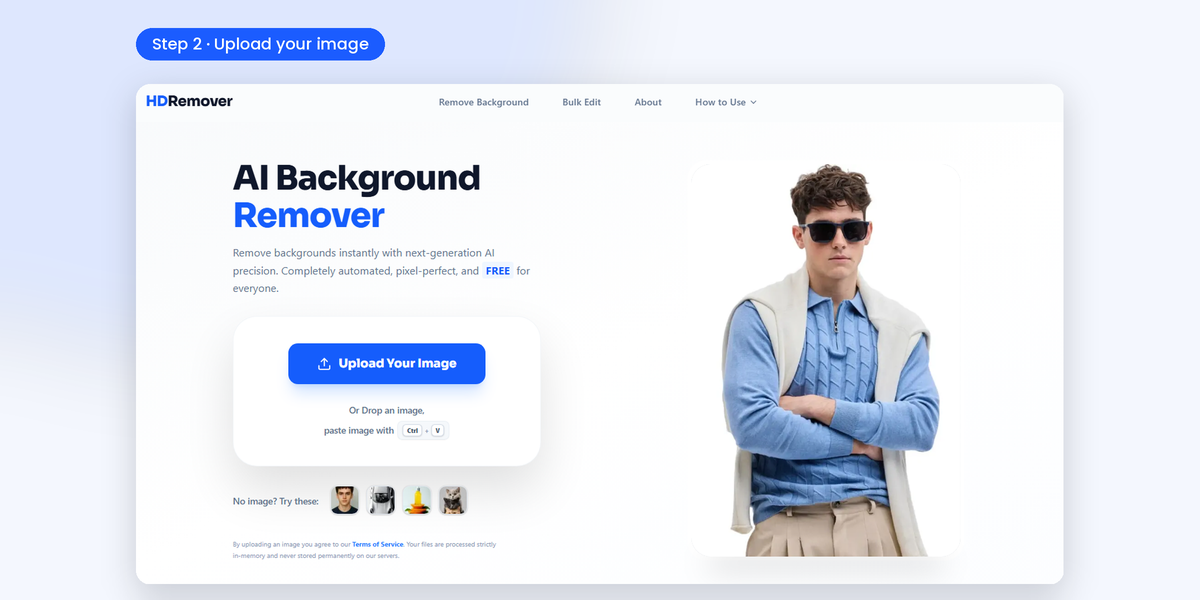
- Upload your image. Click Upload Your Image, drag and drop a file onto the page, or paste an image from your clipboard with Ctrl + V. Use the highest-resolution original you have, because a cutout can only be as sharp as the photo it comes from. No file at hand? The sample images under the upload box let you try the tool first.
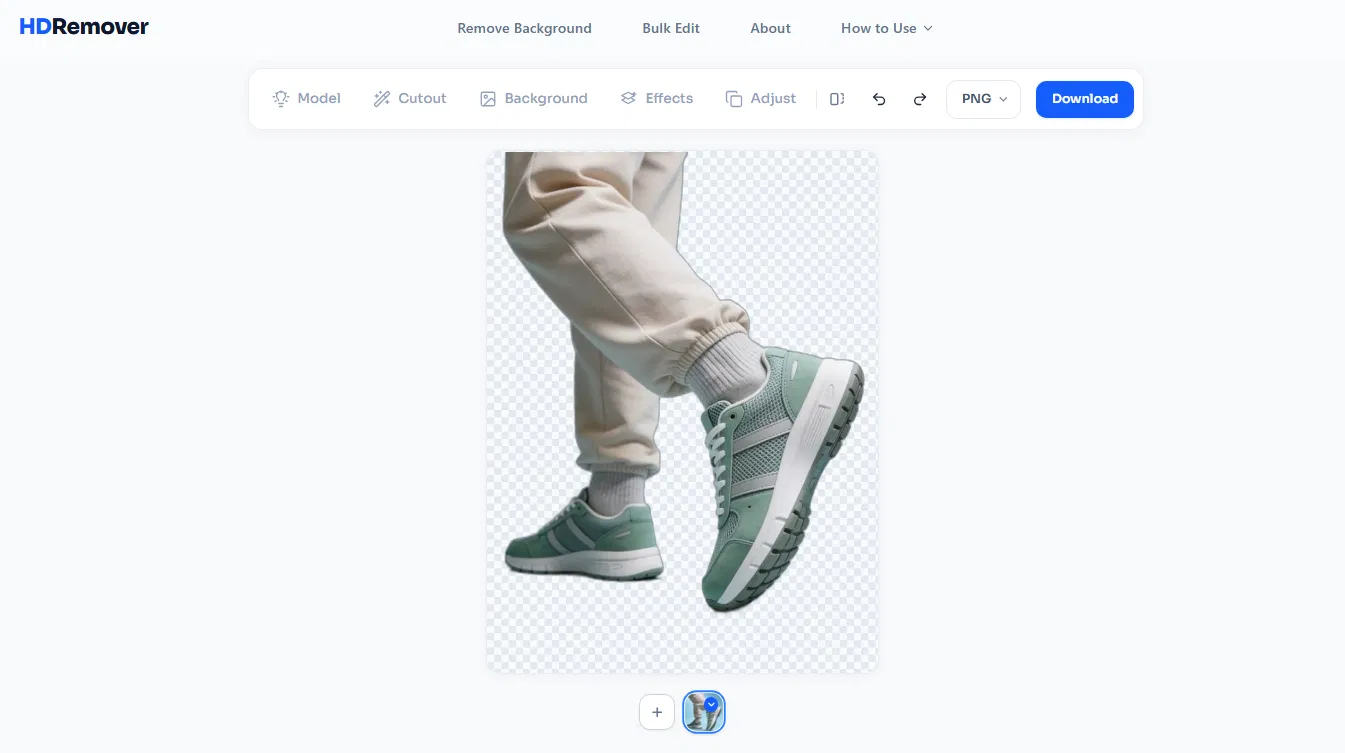
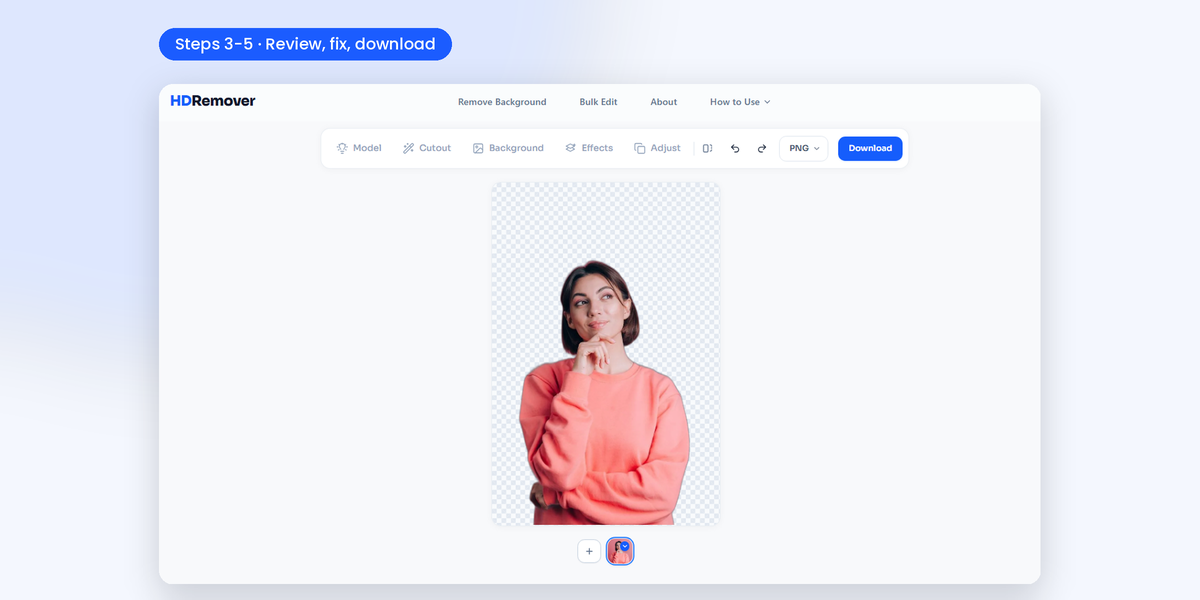
- Review the cutout. Your subject appears on a transparent background, shown as a checkerboard. Check the edges first: hair, fur, fingers, the corners of an object. If they look clean, move straight to step 5.
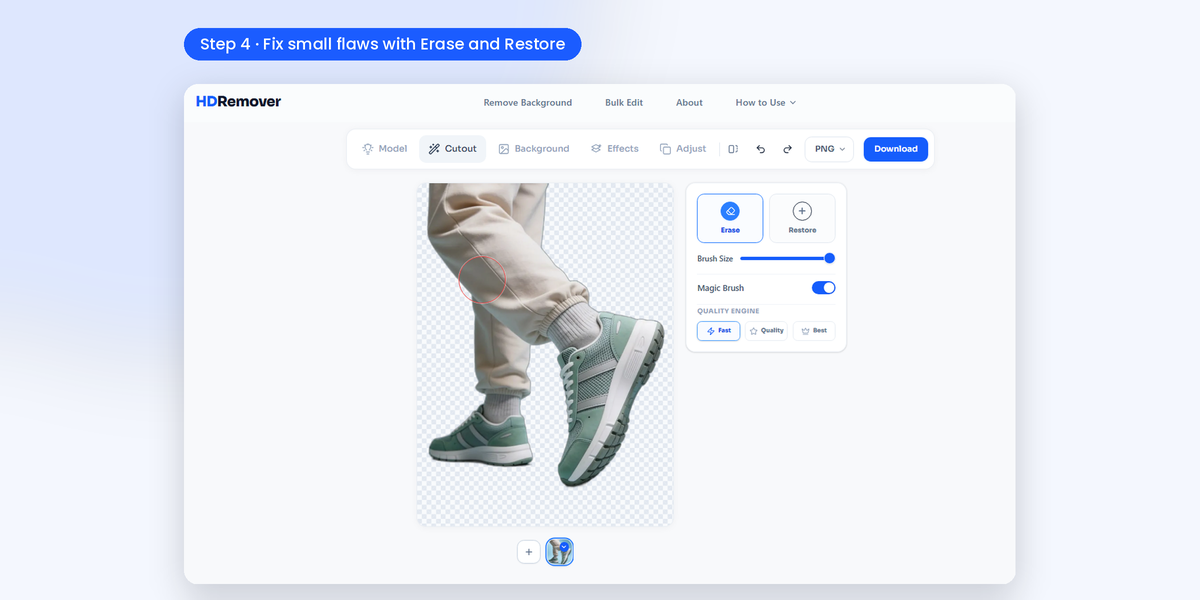
- Fix small flaws, if there are any. Open the Cutout tab and use the Magic Eraser to erase leftover background or restore a part of the subject that was removed by mistake.
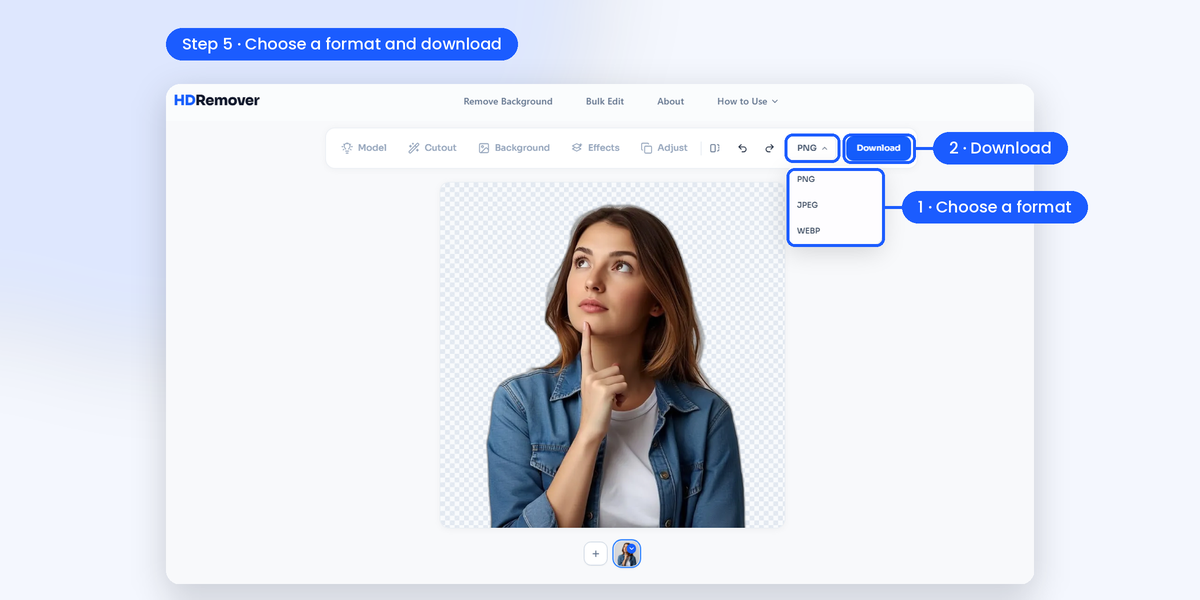
- Choose a format and download. Pick PNG, JPEG or WEBP from the format menu beside the Download button, then click Download. Choose PNG if you need to keep the transparent background.
Before you use the file, open it at 100% once more. Ten seconds spent checking the edges here saves you from finding a rough patch after the image is live on your site.
No account, no watermark, no extra steps
HDRemover removes the usual obstacles between a photo and a finished file. There’s no account to create, and no stamp in the corner of the result. The file you download is the same file anyone else gets.
Some tools ask for an account before download, or reserve full-size output for paid plans. Plenty of good tools work that way, and it’s a fair model. It just adds steps when you only need one image. HDRemover’s tool is built for that case: upload, cut out, download.
Fixing the last few details with Magic Eraser
No automatic cutout is perfect on every photo. A stray patch of background between an arm and the body, or a piece of the subject trimmed too tightly, can slip through on any tool. When that happens, open the Cutout tab and use the Magic Eraser to fix it by hand.
It works in both directions: you can erase a leftover patch of background, and you can restore a part of the subject that was removed by mistake. You stay in the same editor, so there’s no need to re-upload the photo or start over.
Once you’ve touched it up, download the file and open it at 100% in your image viewer to check the edges one more time. That final look is what separates a cutout that merely works from one you’d happily put on a product page.
Which format to export
The export menu offers PNG, JPEG and WEBP. They aren’t interchangeable, and the right choice depends on where the file is going next:
- PNG keeps transparency and full quality. Treat it as your master file.
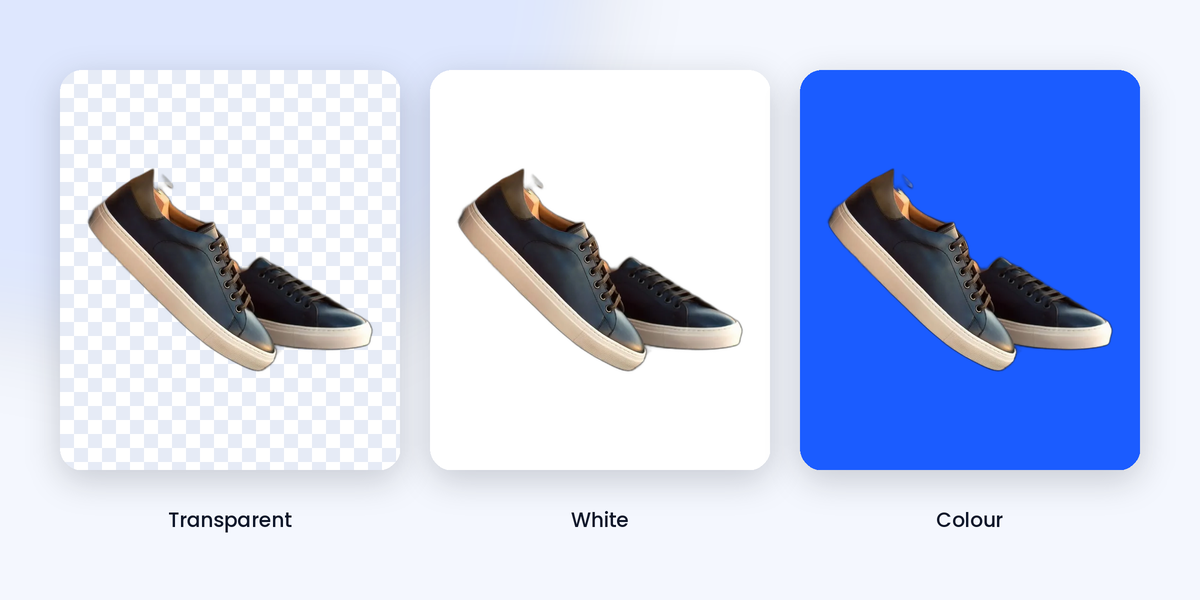
- JPEG has no transparency. Use it only after you’ve placed the subject on a solid background, such as the white background a product page asks for.
- WEBP also supports transparency and usually produces smaller files, which suits web pages.
A common mistake is opening a transparent PNG in an editor and saving it back as a JPG. The transparency vanishes and the old box comes back. Keep the PNG as your master, and make copies in other formats only when a platform requires them.
Coming from remove.bg, Removal.ai, Photoroom or another free bg remover?
Two situations come up often.
If you used remove.bg: its standalone website closes on 1 December 2026. Background removal moves to Canva, and the API moves to Leonardo. For quick one-off cutouts in the browser, the workflow stays the same in HDRemover: upload, cut out, download.
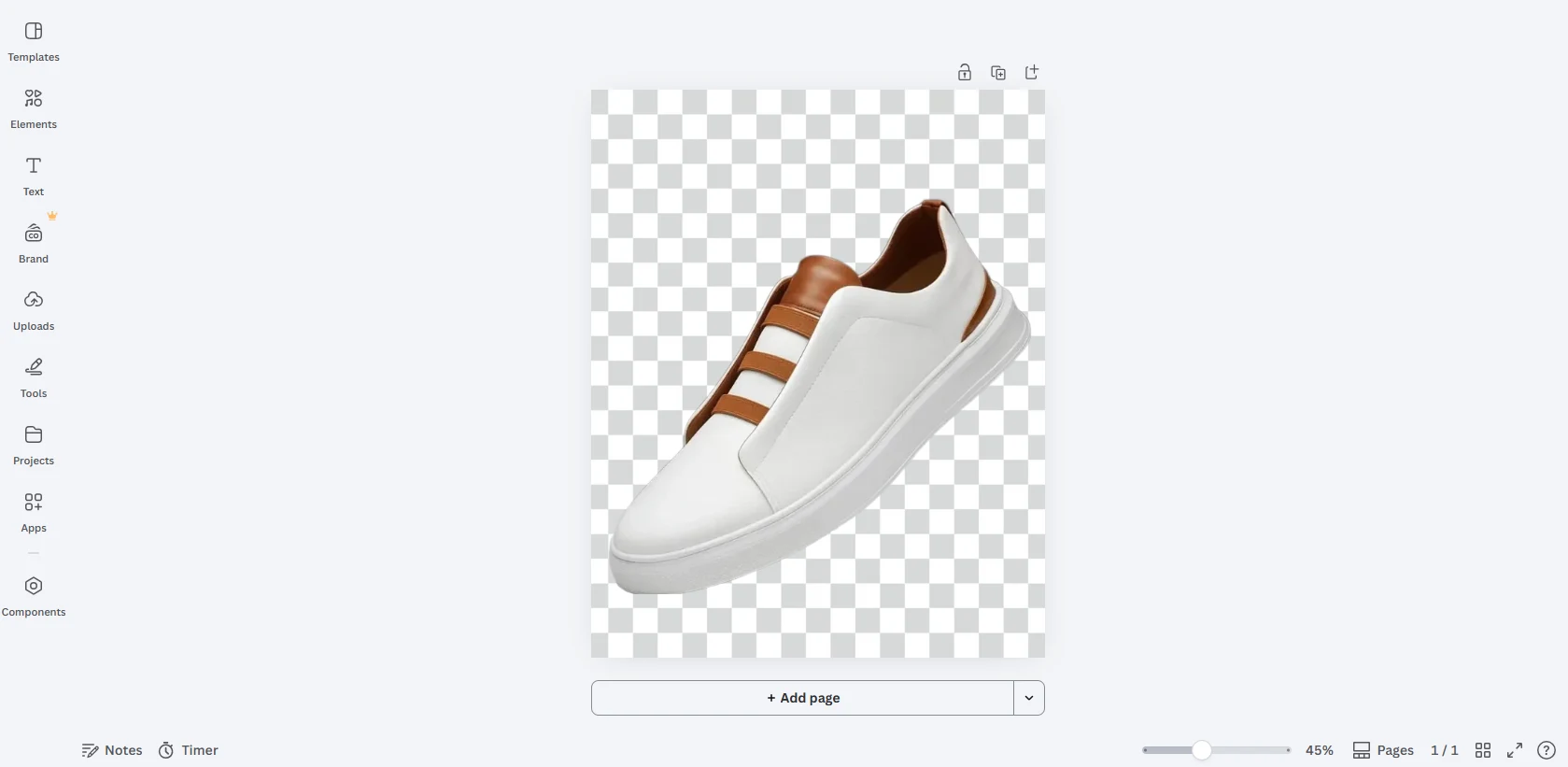
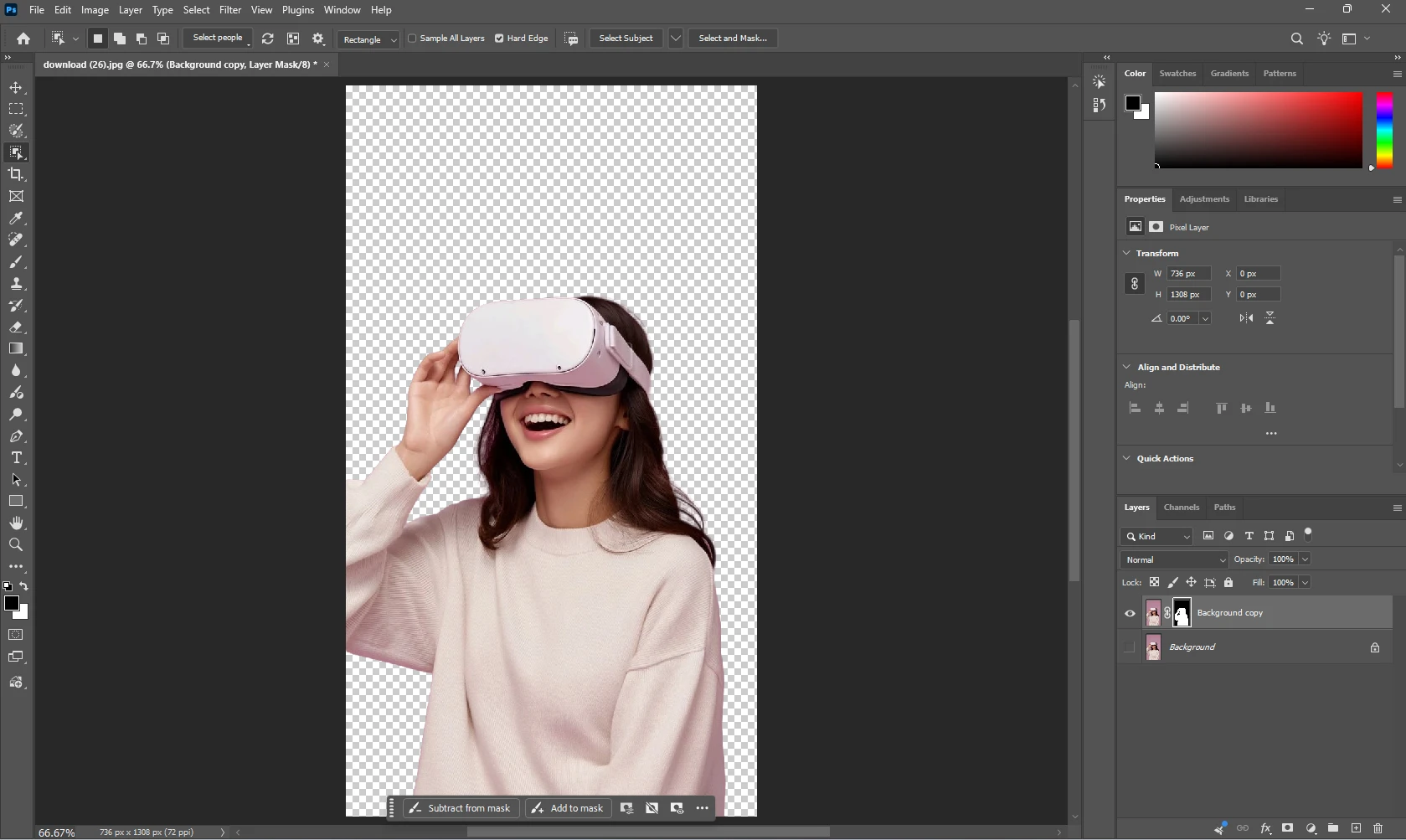
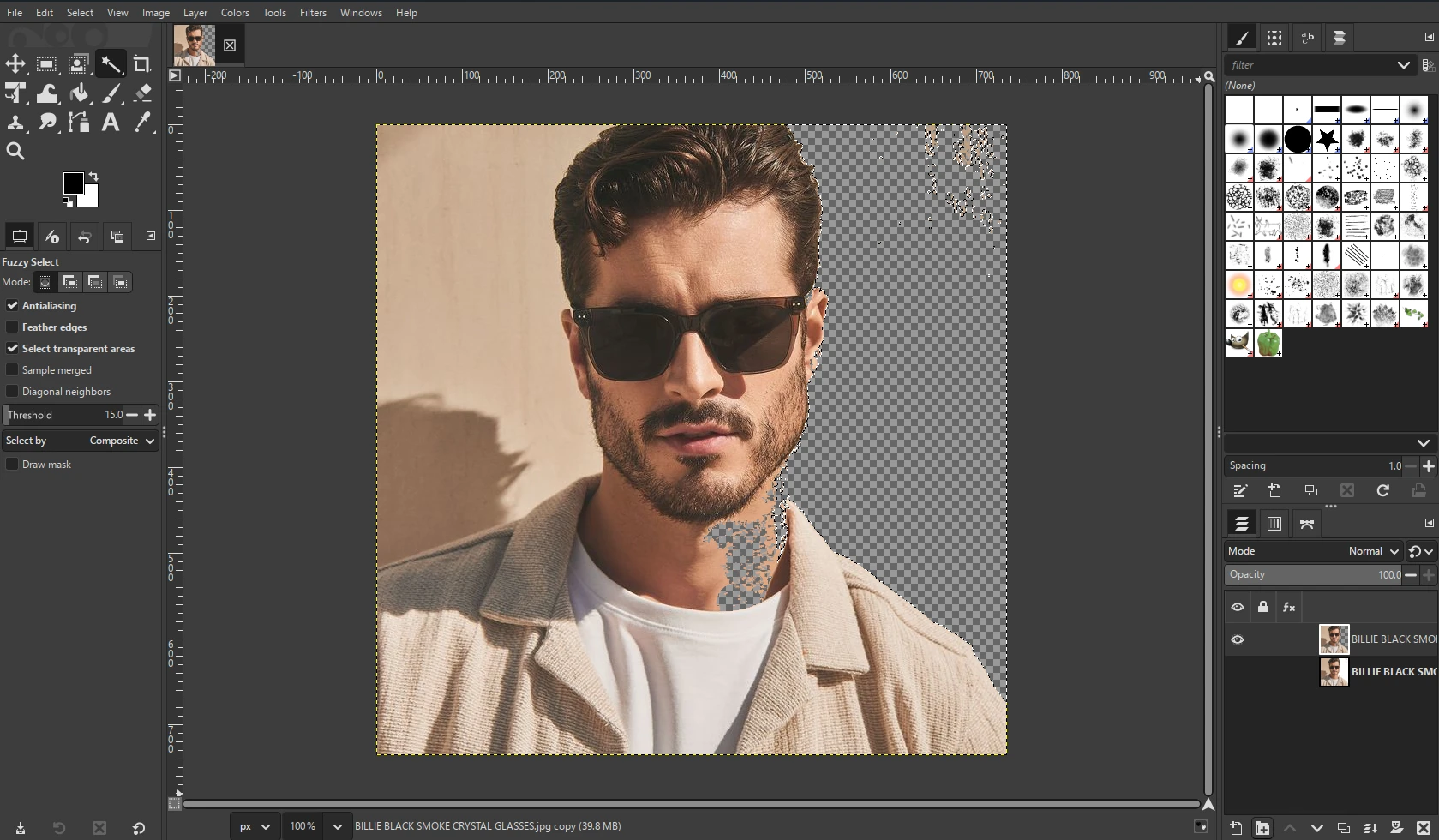
If you used Removal.ai, Photoroom, Adobe Express, Canva, Erase.bg or Slazzer: each has its own plans, limits and export rules, and those change over time. Rather than trusting a comparison table, run the same photo through each tool and check the same three things.
For any free background remover, including ours, these three questions are worth asking before you commit:
- Does it return the full-size file, or a reduced preview?
- Does it require an account before download?
- Does it mark the output in any way?
If the answers are full size, no account and no mark, you can stop comparing and get on with your project.
What happens to your files
HDRemover processes files in memory and doesn’t store them permanently on its servers. That matters most when you’re handling client work, unreleased products or personal photos.
As with any online tool, keep your original file. HDRemover gives you the cutout, and the source photo stays with you.
When you have a whole folder
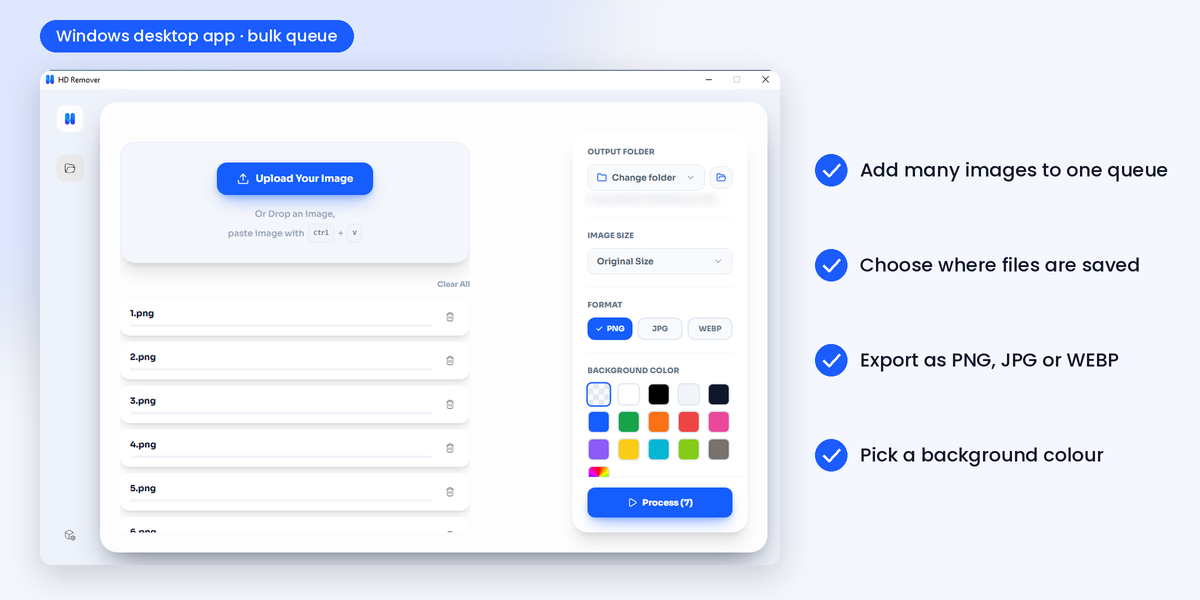
One image at a time is fine for occasional use. It becomes slow when you’re working through a catalog, a full photo shoot or a month of content. For that, the Windows desktop app is built for bulk processing, so you can run many images in one go instead of repeating the same steps by hand.
More than a cutout
After the cut, your subject doesn’t have to stay on a transparent background. HDRemover also works as a background changer, so you can place the subject on a new scene or a solid color without leaving the editor. That feature has its own guide: [LINK: https://hdremover.com/blog/change-image-background].
Frequently asked questions
Is there a free HD background remover?
Yes. HDRemover is free to use and returns full-resolution cutouts with no watermark.
Do I need to sign up to use it?
No. The tool works without an account: upload, cut out and download.
What if the cutout isn’t perfect?
Open the Cutout tab and use the Magic Eraser. You can erase leftover background or restore parts of the subject that were removed by mistake, then download the corrected result.
Which format should I download?
PNG for a transparent master file, WEBP for lightweight web use, and JPEG only once the subject sits on a solid background.
Can I use HDRemover instead of remove.bg?
For quick browser-based cutouts, yes. remove.bg’s standalone site closes on 1 December 2026, and HDRemover covers the same upload-and-download workflow without an account.
Does HDRemover keep my photos?
Files are processed in memory and aren’t stored permanently on the servers.
Can I process many images at once?
Yes. The desktop app for Windows is made for bulk work.
Can I use the results commercially?
Yes. You can use cutouts made with HDRemover in commercial work, such as product listings, ads, social content and client projects. The photo you upload still needs to be one you have the right to use.
Try it on your hardest photo
Skip the easy test image. Take the photo with the most hair, fur or fine edges, run it through the free background remover, then open the downloaded PNG at 100%. That check tells you more than any feature list.