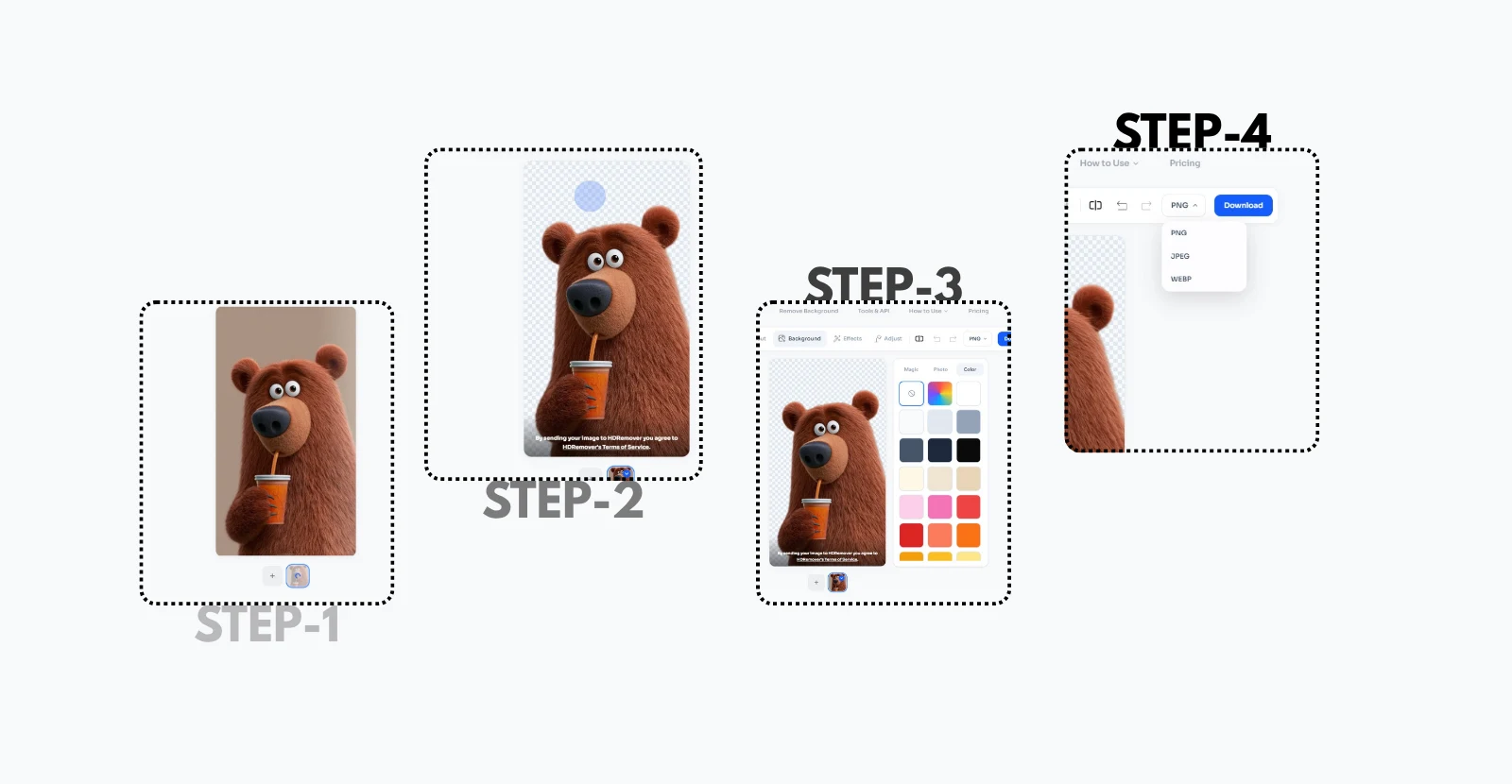



This guide explains how to change an image background in 2026, covering online background replacement, AI-powered editing, background colors, transparent images, custom backgrounds, practical use cases, and the techniques that can help produce natural-looking results.
- Ultimate Change Image Background in 2026!
Changing an image background can completely transform how a photograph looks and where it can be
used. A product can appear cleaner against a simple studio background, a portrait can look more
professional after distracting surroundings are removed, and an ordinary photograph can become a
useful marketing asset with a new visual setting. In 2026, online background-editing tools make this
process accessible even to people who do not have advanced photo-editing experience.
The modern workflow goes beyond simply deleting an unwanted background. A person can remove the
original background, create a transparent image, change the background color, add a new photograph,
or prepare an image for ecommerce, social media, websites, and promotional material. AI-powered
tools can also automate much of the subject-detection process, reducing the amount of manual
selection required.
This guide explains the complete process of changing an image background, from uploading the original
image to checking edges and exporting the final result. It also covers practical use cases, AI-assisted
editing, white backgrounds, transparent images, custom backgrounds, common mistakes, and ways to
make a replacement background look natural.
What Does It Mean to Change an Image Background?
To change an image background means to separate the main subject of a photograph from its existing
surroundings and place that subject over a different visual background. The replacement may be a solid
color, a transparent area, a gradient, a studio scene, or another photograph.
For example, an ecommerce seller may have a product photographed in a room. The product itself may
look good, but the room may not be suitable for a product listing. A background editor can isolate the
product and place it on a clean white or branded background. The same basic idea can be applied to
portraits, social media graphics, presentations, and creative projects.
A typical workflow looks like this:
Original image → Subject detection → Background removal → New background → Final image
Why Change an Image Background?
A background affects the focus, mood, and practical use of an image. Replacing an unsuitable
background can make the subject easier to see and can help the image fit a particular design or
business requirement.
Product Photography
Product photographs often benefit from simple, consistent backgrounds. An online store may use a
white background for a product catalog, while a marketing campaign may require a lifestyle scene.
Changing the background can allow the same product photograph to be adapted for different purposes
without recreating the original photo.
Portrait Photography
Portraits can contain distracting walls, furniture, crowds, or outdoor elements. A replacement
background can simplify the composition or create a different visual setting. For the result to look
convincing, the new background should complement the subject's lighting, position, and perspective.
Social Media Content
Social media creators frequently adapt photographs to different campaigns and visual themes. A single
subject can be placed against a minimal background, colorful gradient, seasonal scene, or branded
design. This makes background editing useful when content needs several visual variations.
Ecommerce Images
Ecommerce stores often contain dozens or hundreds of product images. Consistent backgrounds can
help the catalog appear organized and visually coherent. Background replacement can be particularly
useful when products were photographed in different locations or under different conditions.
How to Change Image Background Online
An online background-changing workflow can be completed in a few straightforward stages. The exact
buttons and features vary between tools, but the general process remains similar.
Step 1 — Upload the Image
The process begins by uploading the original image to an online background editor. A clear, reasonably
high-resolution image generally gives an automated system more useful visual information. The subject
should be visible and not excessively blurred or hidden by other objects.
Step 2 — Remove the Existing Background
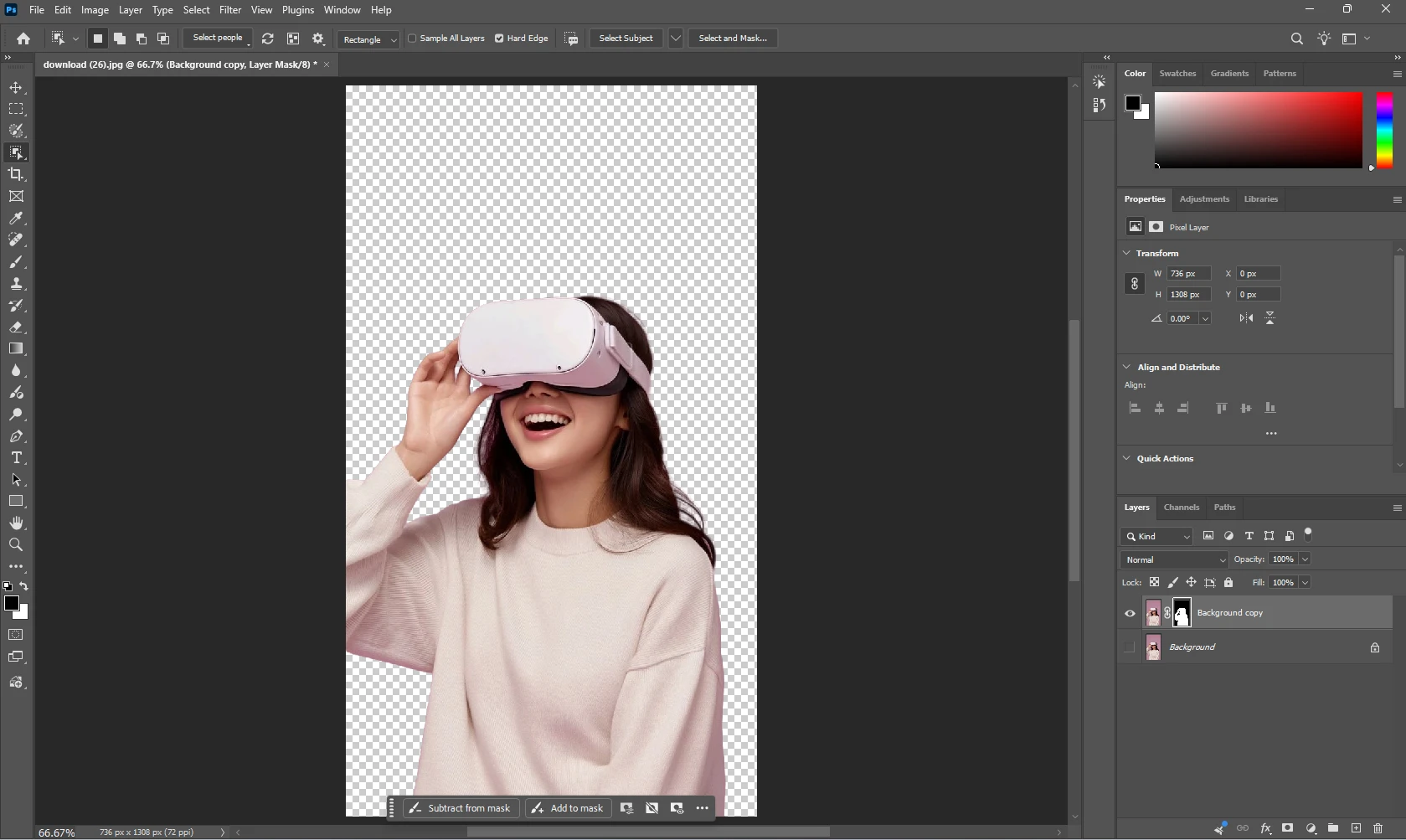
The background-removal stage identifies the main subject and separates it from the surrounding pixels.
AI-powered tools can automate much of this work. Fine details such as hair, fur, thin objects,
transparent materials, and soft shadows may require additional inspection.
Step 3 — Choose a New Background
After the original background has been removed, the subject can be placed over a new background. A
solid color is suitable for many product images, while a custom photograph can be useful for creative or
lifestyle content.
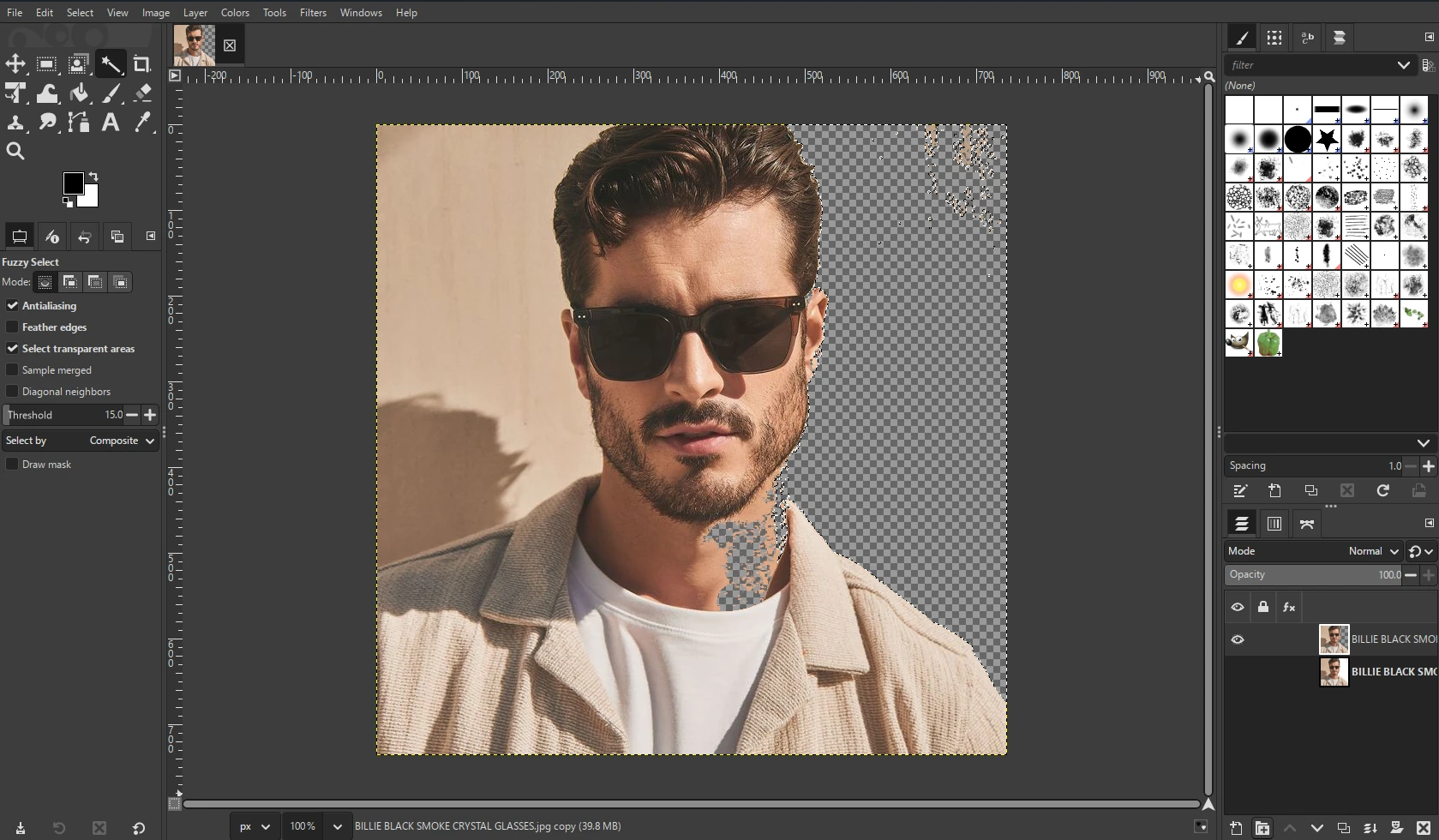
Step 4 — Check the Edges
A quick edge inspection can reveal unwanted fragments of the old background, rough outlines, missing
hair strands, or areas where part of the subject was accidentally removed. This stage is important
because small edge problems can become obvious when the subject is placed over a contrasting
background.
Step 5 — Download the Edited Image
Once the result has been checked, the final image can be exported in a suitable format. A format
supporting transparency is useful when the background has been removed completely, while a standard
image format may be suitable for a finished composition.
How to Change an Image Background With AI
AI has made background editing faster by allowing software to analyze the visual structure of an image
and identify likely foreground and background areas. Instead of manually tracing the subject point by
point, a user can often upload the image and allow the system to create an initial cutout.
The quality of the result depends on the source image and the complexity of the subject. Clear
separation between the subject and its surroundings can make automatic processing easier, while hair,
fur, transparent objects, reflections, and similar colors can make the task more difficult.
AI should therefore be viewed as an efficient starting point rather than a reason to skip the final quality
check. A polished result still benefits from inspecting edges, shadows, colors, and perspective.
Change Image Background to White
A white background is one of the most common choices for product images. It provides a clean visual
environment and keeps attention on the item. It is also useful when several products need to appear
consistent in a catalog.
The typical process is simple: remove the original background, select white as the replacement, check
the subject edges, and export the final image. For products with white or reflective surfaces, extra
attention may be needed because the subject and background can have similar tones.
Change the Background Color of an Image
A completely new photograph is not always necessary. Changing the background color can be enough
to give an image a different visual identity. White, black, gray, blue, green, and brand colors are
common choices.
Color selection should match the purpose of the image. A neutral color may work well for a product
catalog, while a stronger brand color may be more suitable for a promotional graphic.
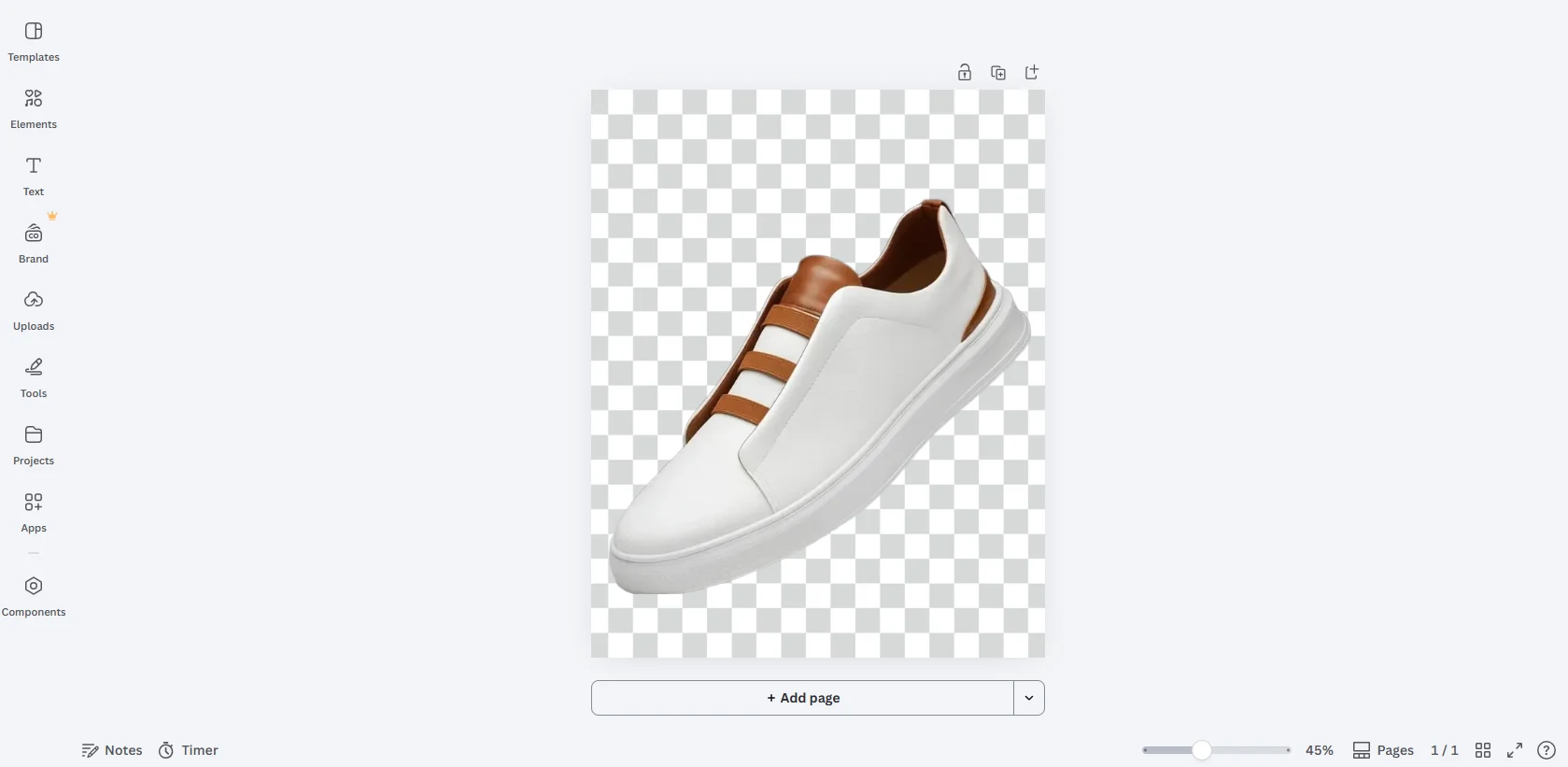
Make an Image Background Transparent
A transparent background removes the original surroundings without replacing them with a new scene.
The isolated subject can then be placed over different designs, webpages, banners, presentations, or
social media graphics.
This workflow is especially useful when the same product, person, or object needs to be reused in
multiple layouts. A transparent PNG is a common choice when the output needs to retain transparent
areas.
Replace a Background With Another Image
Background replacement can also involve placing the subject into an entirely different photograph. A
product can be positioned in a lifestyle scene, a portrait can be placed in a studio environment, or an
object can be integrated into a promotional composition.
The most important consideration is consistency. The subject and new background should make sense
together in terms of lighting, perspective, color, and scale. A technically accurate cutout can still look artificial if these elements do not agree.
How to Change Background of a Picture Online for Free
People searching for a free online way to change a picture background usually want a straightforward
workflow without installing advanced software. A browser-based editor can provide the basic process:
upload the image, remove the original background, select a replacement, review the result, and export
it.
Before choosing a tool, users should check its output quality, supported formats, image-size limits,
watermark policy, and whether important editing features are available without an account.
Change Image Background for Product Photos
Product photographs are among the clearest use cases for background replacement. Sellers may need
white backgrounds for catalogs, brand-colored backgrounds for campaigns, or lifestyle scenes for
advertisements.
Consistency matters when several products are displayed together. Similar framing, background
treatment, and lighting can make a collection look more organized.
Change Image Background for Portraits
Portrait background replacement can remove distractions or create a different atmosphere. A plain
studio background can make a portrait look formal, while an outdoor or lifestyle scene can create a
more casual composition.
The replacement should preserve the natural relationship between the subject and the environment.
Lighting direction and skin tones should remain believable after the edit.
Change Image Background for Social Media
Background replacement can help creators adapt one photograph to multiple social media concepts. A
subject can be placed over a clean gradient, a seasonal design, a promotional background, or a minimal
color.
For social content, the replacement background should also leave enough visual space for captions,
logos, or other design elements when those are part of the post.
How to Make a Background Replacement Look Natural
Replacing the background is only part of the editing process. The new composition should also look
believable. Several visual details can make the difference between a basic cutout and a polished image.
Match the Lighting
The direction and intensity of light on the subject should make sense with the new environment. If the
background suggests light coming from the left while the subject is strongly lit from the right, the result
may feel inconsistent.
Match the Perspective
Add Realistic Shadows
A subject placed into a new environment may need an appropriate shadow or contact shadow. The
purpose is not to add a heavy artificial shadow, but to help establish a believable relationship between
the subject and its surroundings.
Check Hair and Fine Edges
Hair, fur, fabric edges, thin objects, and semi-transparent areas are among the most difficult parts of a
background removal. A close inspection can reveal leftover background pixels or missing subject
details.
Match Colors
Color temperature and overall tone should be reasonably consistent. If the subject is warm and the
replacement environment is very cool, a subtle color adjustment may help the composition feel more
unified.
Common Background-Changing Mistakes
Even when an automated tool performs the main background removal, several common mistakes can
reduce the quality of the final image.
Jagged Edges
Rough or jagged edges can become noticeable around hair, clothing, and objects. A clean
high-resolution source and careful edge checking can reduce this problem.
Incorrect Shadows
Removing every shadow can sometimes make a subject appear to float. On the other hand, adding an
overly dark artificial shadow can look equally unnatural. The shadow should fit the new environment.
Low-Quality Images
A small, heavily compressed, or blurry photograph gives an editor less detail to work with. Starting with
the best available source image can improve the final result.
Wrong Background Perspective
A replacement background with an incompatible camera angle can make the subject look out of place.
The horizon, scale, and perspective should be considered before the final export.
Exporting in the Wrong Format The output format should match the intended use. Transparent images require a format that preserves
transparency, while a finished photograph may be better suited to a standard compressed image
format.
Change Image Background Without Photoshop
Photoshop and other desktop editors provide extensive control, but they are not always necessary for a
simple background replacement. Online tools can automate subject detection and background removal,
which can make the process easier for people who do not regularly use professional editing software.
For a basic task, the workflow can be reduced to uploading the image, removing the background,
selecting a replacement, checking the result, and exporting the final image.
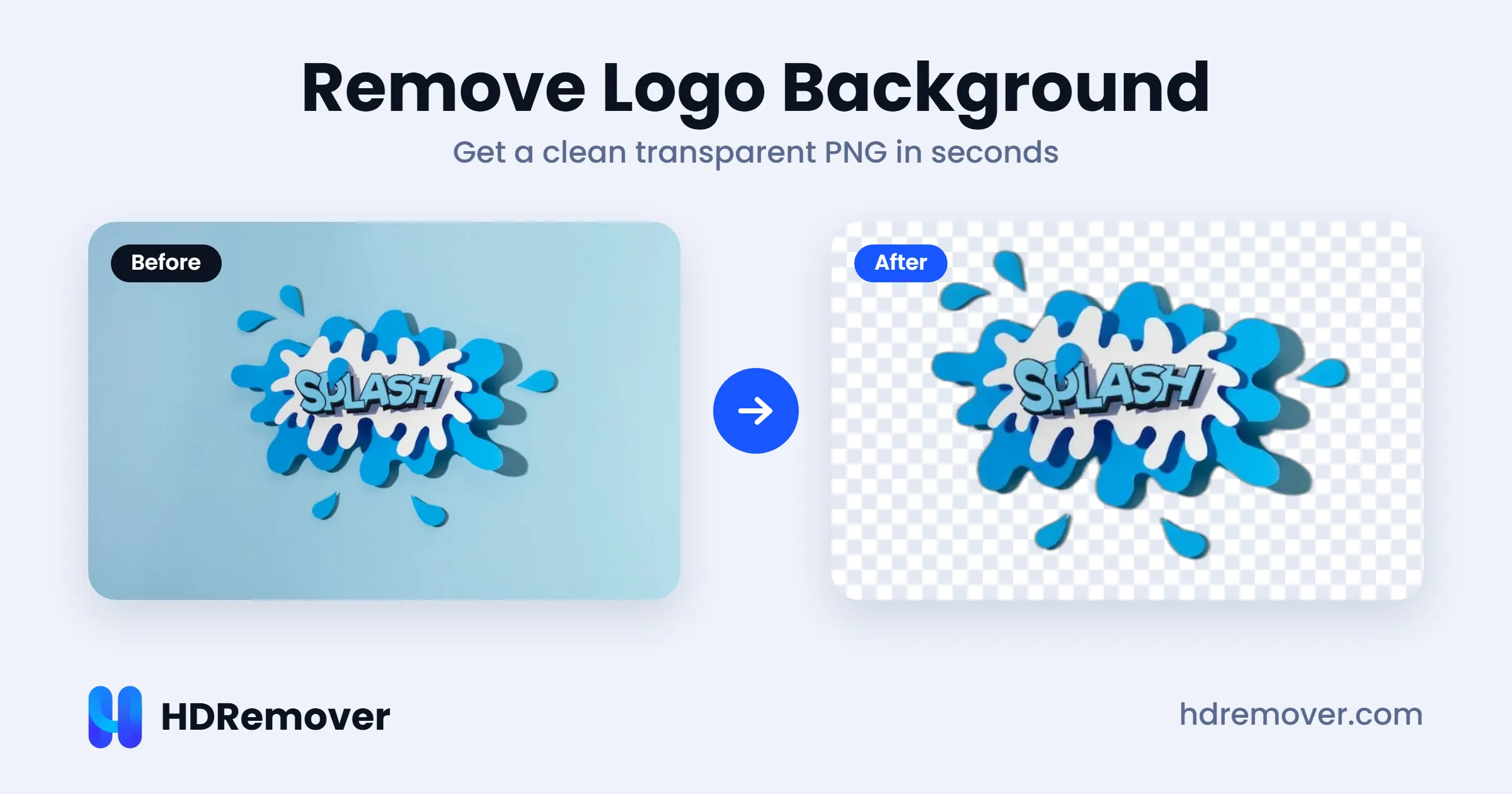
How HDRemover Can Help Change Image Background
HDRemover is designed around automatic image background removal and can be used as part of a
background-editing workflow. A user can start with an image, remove its existing background, and then
use the resulting subject in a new composition or background workflow.
For users who primarily need a clean subject cutout, the background-removal step can remove much of
the manual work involved in traditional selection methods.
Frequently Asked Questions
How can someone change an image background online?
The usual process is to upload the image, remove the existing background, choose a new background
or color, inspect the edges, and export the result. The exact features depend on the selected editing
tool.
Can an image background be changed to white?
Yes. After the original background has been removed, a white background can be applied to the
isolated subject. This is particularly common for product photography.
Can an image have a transparent background?
Yes. A background can be removed without adding a replacement, leaving the subject over a
transparent area. A format that supports transparency can then be used for the exported image.
Can a new photo be used as the background?
Many background editors support a custom image as the replacement. The best result usually comes
from choosing a background with compatible lighting, perspective, scale, and color.
Is Photoshop required?
No. Many online and AI-powered tools can handle common background-removal and replacement tasks
without Photoshop. Desktop software can still be useful when detailed manual editing is required.
What images work best?
Images with a clear subject, sufficient resolution, and reasonable contrast between the foreground and
background are generally easier to process. Complex hair, fur, transparency, reflections, and
overlapping objects may require more careful review.
Final Thoughts
Changing an image background in 2026 is no longer limited to professional photo editors. Online and
AI-powered tools can simplify the process of removing an unwanted background, creating transparency,
changing colors, and placing a subject into a new environment.
The most useful workflow depends on the purpose of the image. Product photography may benefit from
a clean white background, portraits may need a more natural studio or lifestyle setting, and social media
graphics may require a branded or creative background.
Whatever the use case, the final quality depends on more than simply replacing the background. Clean
edges, matching lighting, realistic shadows, suitable perspective, and appropriate image quality all
contribute to a convincing result.
For users who want to begin with a clean subject cutout, HDRemover can be used as a simple starting
point for background removal before the subject is placed into a new design or background.
Ready to remove an image background?